










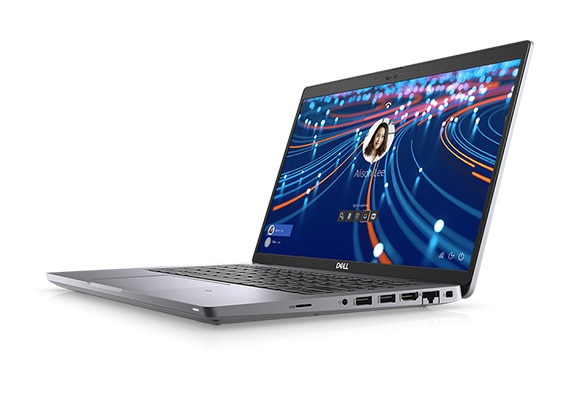
To check a refurbished laptop before buying in Dubai, start with the outside of the laptop. Then check the screen, the keyboard, the battery, the ports, the speakers, the webcam, the charger, and the fan. Then check Windows activation and the basic specs. This short guide gives you a simple hands-on checklist you can use in a shop or at home after delivery.
A refurbished laptop is a used laptop that has been tested and cleaned. It is not a new laptop. Small signs of use can be normal. A dead key, a broken port, a bad battery, or a screen fault is not normal. Take your time. A careful check now can save you a lot of trouble later.
What to Bring for Your Check
Bring a phone charger cable if you use one. Bring a USB drive if you have one. Bring headphones if you want to test sound. Bring a pen and a small note pad if you want to write down what you find. If you buy online, do the same checks as soon as the laptop arrives. Do not wait for days.
Ask the seller three short questions before you pay. What is the warranty? What is the return time? What is in the box? At Khaleej Electronics, laptops come with a 12-month warranty and 10-day returns. Delivery is available in Dubai and Sharjah. You can pay with Cash on Delivery or bank transfer. For returns, the customer pays the return shipping. Keep these facts in mind when you compare shops.
Step 1: Check the Outside
Look at the body and the lid
Open and close the lid a few times. It should move in a smooth way. It should not feel loose. It should not make a loud creak. Look for cracks near the hinges. A small scratch on the lid can be fine. A crack near a hinge is a warning sign. Check the corners. Check the base. Look for dents that push into the case.
Check the screws and the feet
Look under the laptop. The rubber feet should be in place. The screws should not be missing. Missing screws can mean the laptop was opened in a rough way. That does not always mean it is bad. But it is a good reason to ask the seller about the repair history.
Step 2: Check the Screen
Turn the laptop on in a bright room. Open a plain white page. Then open a plain black page. Look for dark spots, bright spots, and lines. Look for dead pixels. A dead pixel is a tiny dot that stays black or white all the time. One tiny dot at the edge may be easy to live with. A cluster of dots in the middle is not good.
Move the screen back and forth a little. The picture should stay clear. It should not flicker. It should not go dark when you move the lid. Test the brightness. Turn it up and down. Make sure the keys for brightness work. If the laptop has a touch screen, test it. Tap each corner. Drag an icon across the screen. The touch should follow your finger with no delay.
Step 3: Check the Keyboard and Trackpad
Open a text file. Type every letter, every number, and every symbol. Press the space bar many times. Press Enter, Shift, Backspace, and Tab. Each key should press down and come back up. No key should stick. No key should feel soft in a strange way. Test the backlight if the laptop has one. Turn it on and off.
Move your finger across the trackpad. The mouse pointer should move in a smooth way. Try a single click and a double click. Try a right click. Try a two finger scroll. The trackpad should not feel loose. It should not click on its own. If the laptop has a fingerprint reader, test it if you plan to use it. If it does not work, ask if that is part of the warranty.
Step 4: Check the Battery
Unplug the charger. Use the laptop for a few minutes. Watch the battery icon. The battery level should drop in a slow and steady way. It should not drop fast. It should not jump up and down. Plug the charger back in. The laptop should show that it is charging.
On a Windows laptop, you can check the battery report. Open Settings. Go to System. Go to Power and Battery. Look for the battery health and the charge level. You can also ask the seller about the battery condition before you buy. A refurbished laptop may not have a brand new battery. That is normal. But the battery should still hold a useful charge for normal daily work.
If the laptop shuts down at a high battery level, that is a warning sign. If the base feels hot near the battery, that is also a warning sign. In both cases, stop and ask the seller for help.
Step 5: Check the Ports
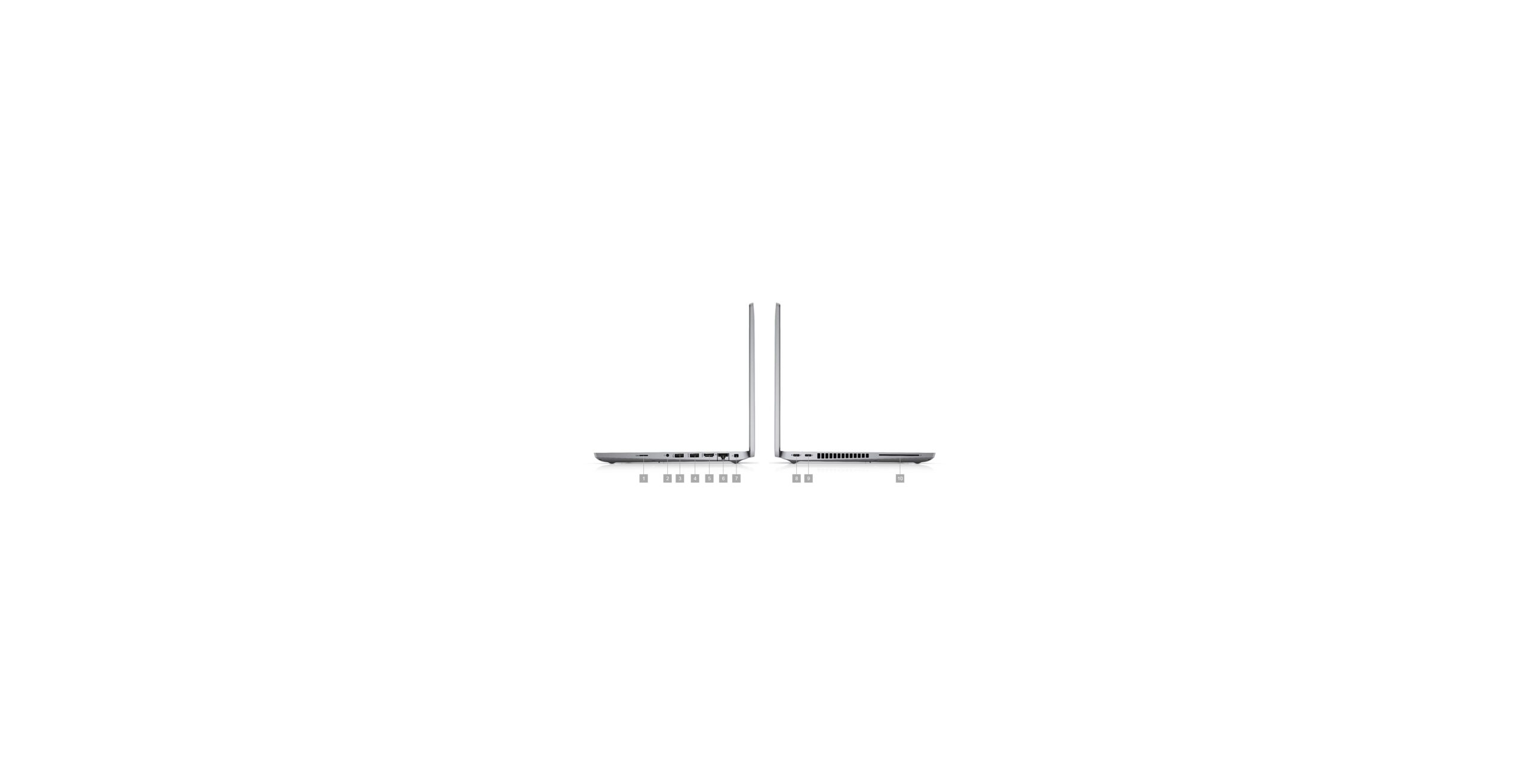
Test each port one by one. Plug in a USB drive. Plug in a mouse if you have one. Plug in headphones. If the laptop has an HDMI port, test it with a TV or a monitor if you can. A port should hold the plug in a firm way. The plug should not fall out. The laptop should find the device fast. If a port is loose or dead, write it down. You may need that port every day for work or study.
Also check the card slot if the laptop has one. Check the charging port. The charger plug should sit in a firm way. It should not wiggle a lot. A loose charging port can cause charging problems later.
Step 6: Check the Speakers, Webcam, and Microphone
Play a short video with sound. Turn the volume up and down. The sound should be clear on both sides. It should not crackle. It should not cut out. Plug in headphones and test again. The sound should switch to the headphones.
Open the camera app. Look at your face on the screen. The picture should be clear in normal room light. It should not be too dark. It should not be too blurry. Record a short voice note. Play it back. Your voice should be clear. If you use video calls for work or study, this test is very important.
Step 7: Check the Charger, Fan, and Heat
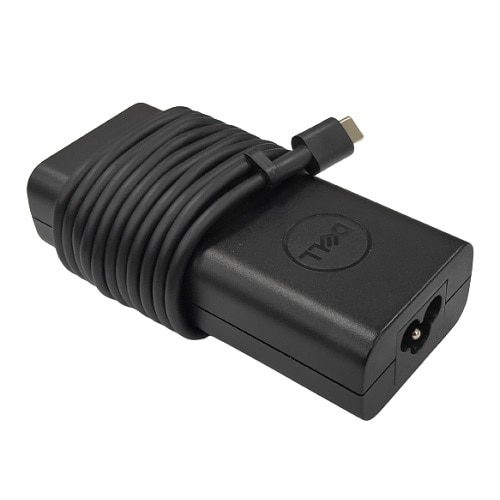
Check the charger and the cable. The cable should not be cut. The plug should not be bent. The charger should not feel too hot after a short charge. Use the charger that comes with the laptop. A wrong charger can cause slow charging or heat problems. If you need a spare, look at the Dell 65W USB-C Laptop Charger – Original as an example of the right type of part for a Dell laptop.
Listen to the fan. Open a few apps. Open a video. The fan may start. That is normal. The fan should not be loud all the time. It should not rattle. It should not grind. Put your hand near the vents. Air should flow out. The laptop should not get too hot on the base after a short use. If it gets very hot fast, ask the seller to check it.
Step 8: Check Windows Activation and Basic Specs
Open Settings. Go to System. Go to About. Check the processor, the memory, and the storage. Compare these with the shop listing. They should match. If they do not match, ask the seller why.
Go to Settings. Go to System. Go to Activation. Windows should show as activated. If it shows a problem, ask the seller to fix it before you pay. Also check the storage space. Open This PC. The main drive should show free space. Open a few apps. They should open in a normal time. The laptop should not freeze on a simple task.
Run a quick Wi-Fi test. Connect to Wi-Fi. Open a web page. Open a video. The connection should stay stable. Test Bluetooth if you use it. Pair a phone or a headset if you can.
Step 9: Do a Final Daily Use Test
Use the laptop the way you will use it each day. Open your email. Open a browser with a few tabs. Open a document. Play a short video. This final test is the best test. It shows how the laptop feels in real use. If something feels wrong, trust that feeling. Ask questions. Do not rush.
Fine vs Warning Sign: A Simple Table
| What you see | What it means |
|---|---|
| Small scratch on the lid | Fine in most cases |
| One tiny dot at the edge of the screen | Fine if it does not bother you |
| Fan noise for a short time under load | Fine in most cases |
| Used battery with a useful charge | Fine for a refurbished laptop |
| Dead keys or a dead port | Warning sign |
| Screen flicker or lines | Warning sign |
| Laptop shuts down at a high battery level | Warning sign |
| Very hot base after short use | Warning sign |
| Windows not activated | Warning sign |
| Crack near a hinge | Warning sign |
Practical Tips for Buyers in Dubai
- Buy from a shop that gives a clear warranty in writing.
- Check the laptop on the day it arrives.
- Keep the box, the charger, and the receipt.
- Take photos of any fault you find.
- Test the laptop for work, study, and video calls.
- Do not judge a laptop by looks alone.
- Ask about the return time before you pay.
A good deal is not just a low price. A good deal is a laptop that works well each day and a shop that helps you if a problem comes up. That is why warranty and returns matter as much as the laptop itself.
Good Laptops to Check at Khaleej Electronics
If you want a strong business laptop, look at the Dell Latitude 5420 – i5-1135G7/16GB/512GB 14 inch FHD (Refurbished) at AED 739. It is a good model to test with this checklist. Also look at the Dell Latitude 5430 Refurbished i5 12th Gen 16GB 512GB and the HP EliteBook 840 G8 Refurbished i7 11th Gen 8GB 256GB. Browse the full Dell laptops range if you want more choice.
For more help, read How to Choose a Refurbished Laptop in Dubai – Complete 2026 Buying Guide and Best Refurbished Laptops Under AED 1000 in Dubai (2026). Both guides use the same simple style as this checklist.
Frequently Asked Questions
How long should a refurbished laptop check take?
A basic check takes about 20 to 30 minutes. A full check with daily use takes longer. Do not rush the screen, keyboard, battery, and ports tests. These are the parts you use every day.
Is a small scratch a reason to return a refurbished laptop?
Not always. Small signs of use are normal for a refurbished laptop. A dead key, a broken port, a bad screen, or a bad battery is a different case. Check the shop return terms before you decide.
What should I do if I find a fault after delivery?
Stop using the laptop for heavy work. Take photos or a short video of the fault. Contact the shop fast. At Khaleej Electronics, returns are available for 10 days. The customer pays the return shipping. Keep your receipt and your order details ready.
Does a refurbished laptop from Khaleej Electronics have a warranty?
Yes. Laptops at Khaleej Electronics come with a 12-month warranty. Delivery is available in Dubai and Sharjah. You can pay with Cash on Delivery or bank transfer.
Ready to Buy with Confidence?
Use this checklist on any refurbished laptop before you buy it in Dubai. Check the screen. Check the keyboard. Check the battery. Check the ports. Check the charger. Check Windows. Then choose a laptop that feels right for your daily work.
Visit Khaleej Electronics to browse refurbished laptops. Or chat on WhatsApp at +971 58 959 4156 for help with your choice. A short chat can help you pick the right laptop and avoid a bad buy.