












What to Do When Your Laptop Won’t Turn On in Dubai
Your laptop won’t turn on. It is a bad feeling, and it often happens at the worst time, before a class, a meeting, or a deadline. The good news is that many laptops that seem dead are not dead at all. A loose charger, a flat battery, or a stuck part can make a laptop look dead when it is not.
In this guide, we show you the simple checks you can do at home, in order. Most take only a few minutes. We also show you when to stop and get help, and when it is better to buy a refurbished laptop than to pay for a repair. We run a shop in Dubai, and we test every refurbished laptop we sell, so we know these steps well.
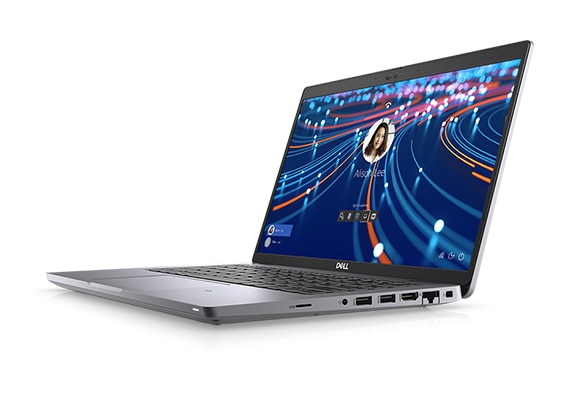
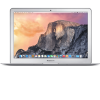
Sample photo of a refurbished Dell Latitude 5420, front view.
The 60 second power checks
Start with the easy checks. They take one minute, and they fix a lot of dead laptops.
- Check the power point: Plug another item into the same socket, like a phone charger. If it does not work, the socket is the problem, not the laptop. Try a different socket.
- Check the charger light: Look at the small light on your charger, if it has one. If there is no light, the charger may be dead. Try a different charger that fits your laptop, if you have one.
- Check the cable: Push the cable fully into the charger brick and into the laptop. A loose cable is a common cause. Look for damage on the cable, like cuts or bent parts.
- Check the laptop charging light: When you plug in the charger, look for a small light on the laptop, near the charging port or on the front edge. If it lights up, the laptop is getting power.
- Wait and try again: If the battery is fully flat, the laptop may need 10 to 15 minutes of charging before it will turn on. Leave it plugged in, then try again.
Try a hard reset
A hard reset can fix a laptop that is stuck. It clears a small amount of power from the laptop, and it can help if the laptop froze during a shutdown.
Follow these steps:
- Unplug the charger from the laptop.
- If you can, remove the battery. Most new laptops have a sealed battery, so skip this step if you cannot remove it.
- Press and hold the power button for 30 seconds.
- Plug the charger back in.
- Press the power button once, and wait.
If the laptop turns on, you are done. If it does not, go to the next step.
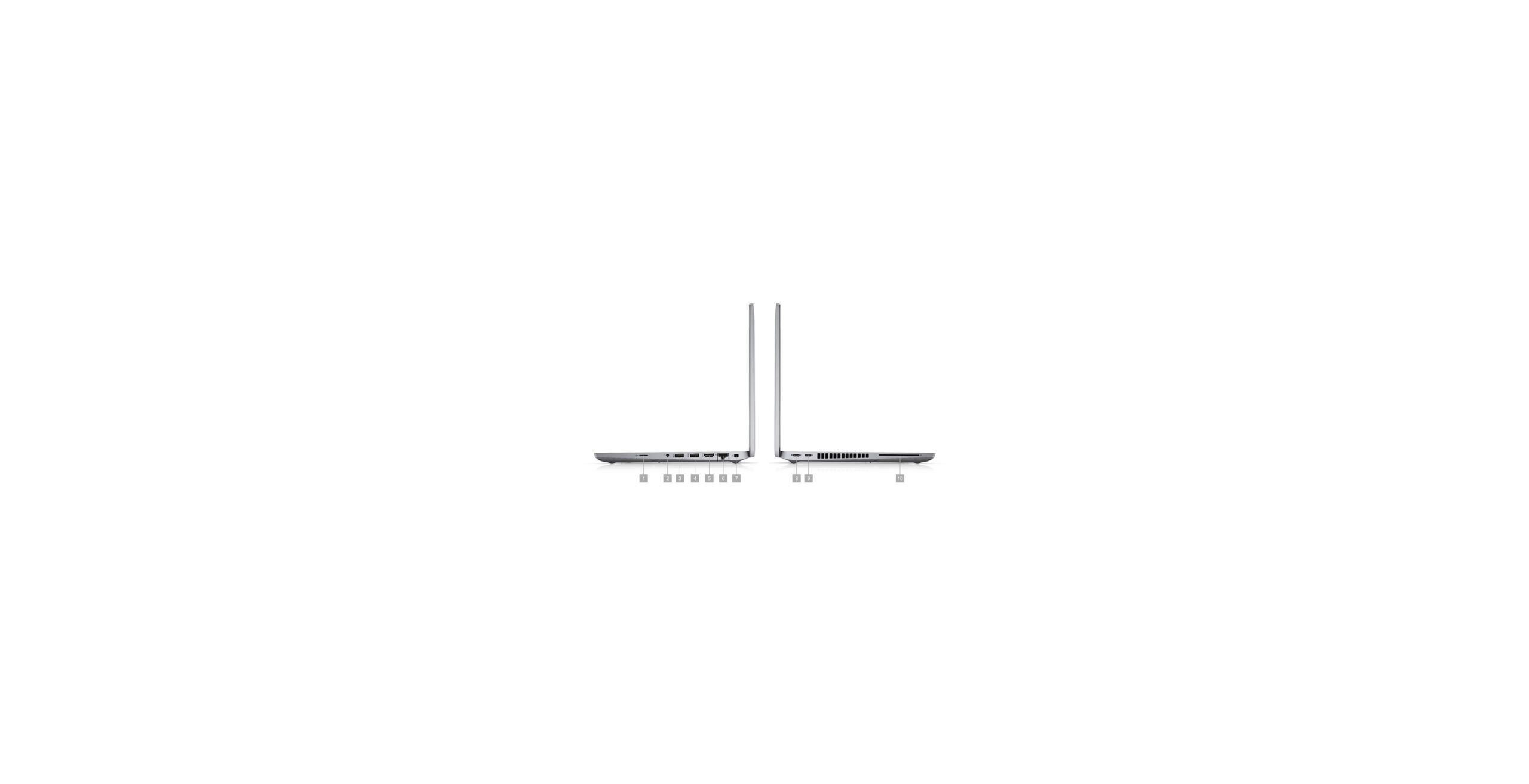
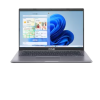
Sample photo of a refurbished Dell Latitude 5420, keyboard view.
Is it the screen or the laptop?
Sometimes the laptop is on, but the screen is black. You can check this in one minute.
- Press the power button and listen. Do you hear a fan, a beep, or a hard drive sound? If yes, the laptop is on.
- Shine a light on the screen at an angle. If you can see a faint image, the screen backlight is the problem.
- Connect the laptop to a TV or an external screen with an HDMI cable. If the image shows on the TV, your laptop screen is the problem, not the laptop.
- Try the screen brightness keys. On many laptops, press Fn and the brightness up key.
If the laptop works on an external screen, you can still use it with a monitor while you plan a screen repair. A screen repair is often worth it on a good laptop, but not on a very old one.
The charging light is on, but the laptop won’t start
If the charging light is on, the charger and the port are working. The problem is inside the laptop. Try these steps in order:
- Unplug the charger, then plug it back in.
- Try the hard reset steps above.
- Remove any USB drives, SD cards and other items from the laptop.
- Try to start the laptop with only the charger plugged in, no battery if you can remove it.
If none of these work, the problem may be the RAM, the hard drive, or the main board. Go to the RAM step below.
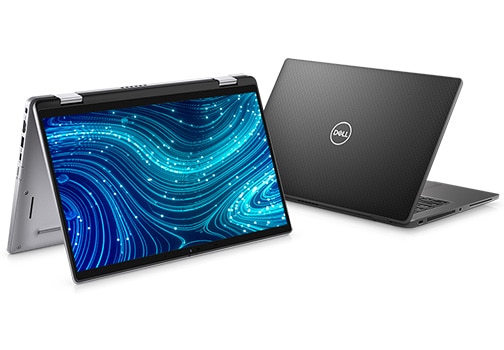
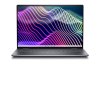
Sample photo of a refurbished Dell Latitude 7420, front view.
Try the RAM fix
RAM is the short term memory of the laptop. If a RAM stick is loose, the laptop may not start, or it may beep and show a black screen. This is a common fault, and it is often easy to fix.
Only try this if you are comfortable opening the back of the laptop. If not, take it to a repair shop. The steps are:
- Turn off the laptop and unplug the charger.
- Open the back cover. On many Dell and HP laptops, you need a small screwdriver.
- Find the RAM sticks. They are small, flat boards in slots.
- Push the clips on the sides, take out a stick, then put it back in firmly until it clicks.
- If there are two sticks, try with one stick at a time.
- Close the cover, plug in the charger, and try to start the laptop.
If the laptop starts, the RAM was the problem. If you want to know more about RAM, read our guide on how much RAM you need in a laptop.
Listen for beep codes
Some laptops beep when they start. The beeps are a code. For example, 3 beeps may mean a RAM fault, and 5 beeps may mean a main board fault. The code is different for each brand, so search for your laptop model and beep code online. Write down how many beeps you hear, and if they are long or short. This helps a repair shop find the fault fast.
| What you see or hear | What it may mean | What to do |
|---|---|---|
| No light, no fan, no sound | No power, dead charger or dead battery | Try another charger and socket. Check the cable. |
| Charging light on, fan spins, black screen | Screen or RAM fault | Try an external screen. Try the RAM fix. |
| Fan spins, then stops, no screen | RAM or main board fault | Try the hard reset and the RAM fix. |
| Beep codes | RAM or main board fault | Note the beeps and search for your model. |
| Logo shows, then it turns off | Hard drive or Windows fault | Try to boot from a USB drive, or get help. |
| Screen works on a TV, not on the laptop | Screen or screen cable fault | Use an external screen, or get a screen repair quote. |
Unplug all devices
A faulty USB drive, a bad SD card, or a damaged dock can stop a laptop from starting. Unplug everything from the laptop, including USB drives, mice, keyboards, docks and chargers, then try to start it again. If it starts, plug the items back in one at a time to find the faulty one.
Check for heat
A laptop that is very hot may not start until it cools down. Feel the bottom of the laptop. If it is hot, leave it off for 30 minutes in a cool place, then try again. Do not use a laptop on a bed or a soft surface, as it blocks the air vents. Our guide on keeping a laptop cool in the UAE heat has more tips.
Check for a failed hard drive
If the laptop turns on, shows the logo, then stops or shows an error, the hard drive may have failed. If you hear a clicking sound, the hard drive may be dead. Do not keep trying to start it, as this can make data loss worse. If your files are important, take the laptop to a repair shop for data recovery. If you want to know more, read our guide on refurbished laptop battery health in Dubai.
Quick troubleshooting table
| Symptom | Most likely cause | Next step |
|---|---|---|
| Nothing happens at all | Charger, socket or battery | Try another socket and charger. |
| Light on, no screen | Screen, RAM or main board | Try an external screen and the RAM fix. |
| Fan spins, then stops | RAM or main board | Try the hard reset and the RAM fix. |
| Beeps on start | RAM or main board | Note the beeps and search for your model. |
| Logo, then it turns off | Hard drive or Windows | Get help from a repair shop. |
| It starts after a long charge | Flat battery | Replace the battery if it drains fast. |
When it is a hardware fault
Some faults need a repair shop. These are the signs:
- The laptop smells burnt, or you see smoke. Turn it off at once and unplug it.
- The laptop was dropped or got wet. Do not try to turn it on. Take it to a repair shop.
- The screen is cracked or shows lines. This needs a screen repair.
- The laptop turns on, but the fan is very loud and the laptop is very hot. This may be a fan or heat problem.
- The hard drive makes a clicking sound. This may be a failed hard drive.
If you see any of these signs, stop and get help. Do not open the laptop if you are not sure what you are doing.
Repair or buy a refurbished laptop?
If the repair costs more than the laptop is worth, it is better to buy a refurbished laptop. A refurbished laptop is a used laptop that has been checked, cleaned and tested. It costs less than a new laptop, and it comes with a warranty.
Here are some refurbished laptops we sell in Dubai, with prices re-checked against the live shop on 2026-11-11:
| Laptop | Specs | Price |
|---|---|---|
| Dell Latitude 5420 | Intel Core i5-1135G7, 16GB RAM, 512GB SSD, 14 inch Full HD | AED 739 |
| Dell Latitude 5411 | Intel Core i7 10th Gen, 8GB RAM, 256GB SSD, 14 inch Full HD | AED 829 |
| HP EliteBook 840 G6 | Intel Core i7 8th Gen, 16GB RAM, 512GB SSD, 14 inch Full HD | AED 761 |
| Dell Latitude 7420 | Intel Core i7 11th Gen, 16GB RAM, 512GB SSD, 14 inch Full HD | AED 1,039 |
| Lenovo ThinkPad T14 Gen 3 | Intel Core i5 12th Gen, 16GB RAM, 512GB SSD, 14 inch Full HD | AED 1,829 |
All of these laptops come with a 12 month warranty, a 10 day return period, and Cash on Delivery in Dubai and Sharjah. We test each laptop before we sell it, so you can buy with confidence.
If your old laptop is more than 5 years old, a repair may cost more than it is worth. A newer refurbished laptop will be faster, lighter and have a better battery. If your laptop is only 1 or 2 years old, a repair is often worth it.
How to stop this from happening again
Once your laptop is working again, take these steps to keep it working:
- Keep it charged: Do not let the battery go flat for a long time. Charge it at least once a week.
- Keep it cool: Use it on a hard surface, not on a bed or a sofa. Clean the air vents once a month.
- Update Windows: Install Windows updates when they come. They fix bugs and keep the laptop safe.
- Back up your files: Copy your files to a USB drive or to the cloud. If the laptop fails, you will not lose your work.
- Use a good charger: Use the charger that came with the laptop, or a good quality replacement. A cheap charger can damage the laptop.
Before you call a technician
If you need to call a repair shop, have this list ready. It will help the technician find the fault fast:
- Your laptop brand and model, for example Dell Latitude 5420.
- What happened before it stopped working. Did it fall, get wet, or show an error?
- What you see now. Is there a light, a fan sound, or a beep?
- What you have tried already. For example, hard reset, another charger, external screen.
- Your files. Do you have a backup, or do you need data recovery?
Frequently asked questions
My laptop won’t turn on at all. What should I do first?
Check the power point, the charger light and the cable first. Try a different socket and a different charger if you have one. Then try a hard reset. These steps fix many dead laptops in a few minutes.
Why does my laptop turn on but show a black screen?
The laptop may be on, but the screen may be faulty. Connect it to a TV or an external screen with an HDMI cable. If the image shows on the TV, the laptop screen is the problem. If not, try the RAM fix.
Can a flat battery stop a laptop from turning on?
Yes. If the battery is fully flat, the laptop may need 10 to 15 minutes of charging before it will turn on. If the battery drains fast after charging, it may need to be replaced.
When should I buy a refurbished laptop instead of paying for a repair?
If the repair costs more than the laptop is worth, or if the laptop is more than 5 years old, a refurbished laptop is often better value. A refurbished laptop from Khaleej Electronics comes with a 12 month warranty, a 10 day return period and Cash on Delivery. Prices re-checked against the live shop on 2026-11-11.
If your laptop still won’t turn on after these steps, it may need a repair. If a repair is too costly, a refurbished laptop is a good choice. Browse our refurbished laptops in Dubai, or call us on WhatsApp at +971 58 959 4156. We can help you find a laptop that fits your work and your budget.