









How to Tell If Your Laptop Needs an SSD Upgrade in Dubai
Short answer: if your laptop takes more than a minute to start, apps open slowly, files take ages to copy, or the hard drive light stays on all the time, your laptop almost certainly needs an SSD upgrade. Swapping an old hard drive (HDD) for a solid state drive (SSD) is the single fastest and cheapest way to make an old laptop feel new again in Dubai, and it usually costs far less than buying a new laptop.
In this guide we explain the clear signs, a simple 2 minute check you can do at home, how much faster an SSD really is, what an upgrade costs in Dubai, and when an SSD upgrade is not enough and a refurbished laptop is the better choice.
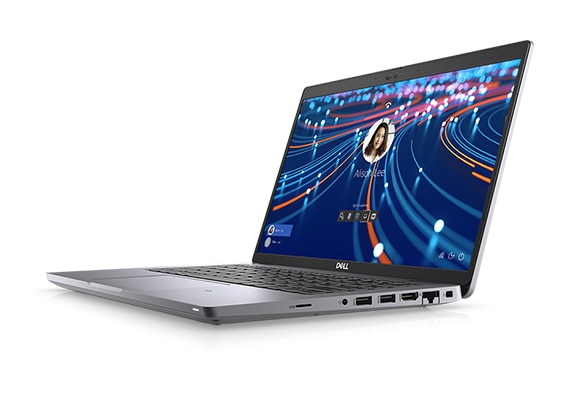
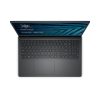
Sample photo of a Dell Latitude model. A laptop with an SSD starts in seconds, not minutes.
What Is an SSD and Why Does It Matter So Much?
An SSD is the part of your laptop that stores Windows, your apps and your files. An old style hard drive, called an HDD, has a spinning disc inside it. It has to spin up and move a small arm to find your data, a bit like a record player. An SSD has no moving parts. It reads data with memory chips, so it finds everything almost at once.
That one difference changes everything you feel when you use the laptop. Windows starts in 15 to 20 seconds instead of 2 minutes. Chrome opens at once instead of making you wait. Copying a 1GB file takes seconds instead of minutes. The laptop also feels quieter, because there is no spinning disc, and the battery often lasts a little longer too.
Most laptops sold before 2019 came with an HDD. Most laptops sold after 2020 came with an SSD. So if your laptop is 5 or 6 years old and still has its first hard drive, an SSD upgrade is usually the best money you can spend on it.
7 Clear Signs Your Laptop Needs an SSD Upgrade
1. Your laptop takes more than a minute to start
Press the power button and time it. A healthy laptop with an SSD reaches the Windows login screen in about 15 to 25 seconds, and the desktop is ready to use a few seconds after that. If yours takes 60 seconds, 90 seconds or more, and you then wait again while the desktop loads, the hard drive is the bottleneck. This is the most common sign we see in Dubai, and it is also the easiest one to fix.
2. Programs open slowly or freeze for a few seconds
Click on Chrome, Word or Excel and watch. With an SSD, the program window appears at once. With an old HDD, you click, nothing happens, you click again, and then two windows open at once. That pause is the hard drive searching for the program files. If this happens with every app, every day, the drive is struggling.
3. The hard drive light never stops blinking
Many laptops have a small light that blinks when the drive is working. On a laptop with an SSD, that light blinks in short bursts. On a laptop with a tired HDD, the light stays on almost all the time, even when you are doing nothing. Windows is constantly reading and writing small files in the background, and a slow drive can never catch up.
4. Copying or moving files is painfully slow
Try copying a 1GB folder of photos to another folder. An SSD does it in a few seconds. An HDD can take 2 to 5 minutes for the same job. If you work with photos, videos or large files and every copy feels like a tea break, your drive is the problem, not your processor.
5. Your laptop is loud or hot for no clear reason
An HDD has a motor that spins at 5,400 turns a minute. When it works hard, it makes a soft whirring or clicking sound and it makes heat. If your laptop hums all the time, or the fan runs loudly while you only browse the web, the old drive may be working far too hard. An SSD is silent and runs cool.
6. Games and big apps load very slowly
If you play games or use heavy apps like Photoshop, the loading screens tell the truth. An SSD can cut game loading times in half or better. If your friends with similar laptops load a level in 20 seconds and you wait 2 minutes, the drive is the difference.
7. Task Manager shows the disk at 100 percent
This is the sure test, and it takes 2 minutes. Press Ctrl plus Shift plus Esc to open Task Manager, click the Performance tab, then click Disk. If the disk usage sits at 90 to 100 percent while you only open a browser, your drive cannot keep up. Also check the drive type: if it says HDD, you have your answer. If it says SSD and the disk is still at 100 percent, the problem is something else, like too little RAM or a virus scan running.
The 2 Minute Check: HDD or SSD?
You do not need to open your laptop to find out what drive it has. On Windows 10 or 11, do this:
- Press the Windows key and type “Defragment”. Open “Defragment and Optimize Drives”.
- Look at the Media Type column. It will say either “Solid state drive” or “Hard disk drive”.
- If it says hard disk drive, an SSD upgrade will change your laptop completely.
- While you are there, check the size too. If the drive is almost full, above 90 percent, that alone slows a laptop down. Free up space first, then judge the speed again.
On a Mac, click the Apple menu, then About This Mac, then More Info, then Storage. It will tell you if the drive is an SSD or a hard drive.
How Much Faster Is an SSD, Really?
Here is a simple comparison from real everyday use:
| Task | Old HDD | New SSD |
|---|---|---|
| Windows start up | 60 to 120 seconds | 15 to 25 seconds |
| Open Chrome | 5 to 10 seconds | 1 to 2 seconds |
| Open Word or Excel | 8 to 15 seconds | 2 to 3 seconds |
| Copy a 1GB file | 2 to 5 minutes | 10 to 20 seconds |
| Open a large photo folder | Slow, thumbnails load one by one | Fast, all thumbnails at once |
| Noise and heat | Whirring sound, warm base | Silent, cool |
These are normal results, not best case numbers. An SSD is roughly 5 to 10 times faster than an HDD for the jobs you do every day. No other single upgrade comes close. Adding RAM helps too, but if your drive is an HDD, the SSD comes first.
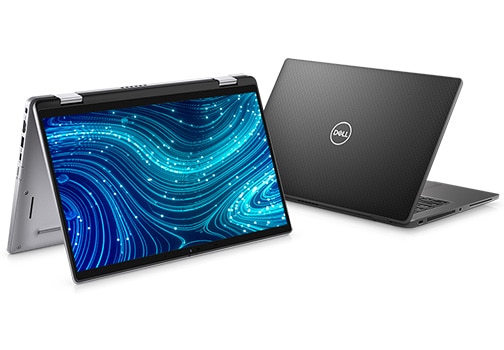
Sample photo of a Dell Latitude model. Business laptops like this one already come with fast SSD storage.
SSD vs HDD: A Simple Comparison
If you are still unsure which one you have, or which one to buy, here is the plain comparison:
- Speed: SSD is 5 to 10 times faster. HDD is slow at everything.
- Noise: SSD is silent. HDD hums and clicks.
- Durability: SSD has no moving parts, so a small knock does not hurt it. HDD can break if the laptop is dropped while it is running.
- Price per GB: HDD is cheaper for huge storage, like 2TB. SSD costs more per GB, but a 256GB or 512GB SSD is now cheap and is enough for most people.
- Battery: SSD uses less power, so the battery lasts a little longer.
For a laptop you carry around every day, an SSD wins on every point that matters, except raw price per GB for very large storage.
What Size SSD Do You Need?
- 256GB: enough if you mostly browse, use Office and store a few photos. This is the smallest size worth buying today.
- 512GB: the sweet spot for most people. Room for Windows, all your apps, photos and some videos, with space to spare.
- 1TB: best if you keep lots of videos, games or work files on the laptop itself.
Check how much space your current drive uses before you buy. If you use 200GB now, a 256GB drive will feel tight within a year. Go one size up if you can. A 512GB SSD is the safe choice for most buyers in Dubai.
What Does an SSD Upgrade Cost in Dubai?
A good 500GB SSD from a known brand is a modest purchase, and fitting it takes a technician about 30 to 60 minutes. Many shops in Dubai and Sharjah will clone your old drive, so Windows, your apps and your files move across and nothing is lost. Always ask for this cloning service, and always ask for your old drive back.
Before you pay for an upgrade, compare it with the price of a refurbished laptop that already has an SSD. A refurbished Dell Latitude 5420 with 16GB RAM and a 512GB SSD is listed at AED 739, and a Dell Latitude 5411 with a 256GB SSD is listed at AED 829. If your current laptop is very old, has a weak processor or a cracked screen, a refurbished laptop with an SSD already fitted can be better value than upgrading a tired machine.
Also check your RAM at the same time. If your laptop has only 4GB of RAM, an SSD plus a RAM upgrade together make the biggest difference. Our guide on how much RAM you really need in a refurbished laptop explains the right amount for students, office work and heavy use.
Can You Upgrade the SSD Yourself?
On many older Dell Latitude, HP EliteBook and Lenovo ThinkPad models, the SSD is easy to reach: one or two screws on the back cover, and the drive slides out. On newer thin laptops, the drive may be glued in or soldered, which means it cannot be upgraded at all. Before you buy an SSD, check your exact model online or ask the shop.
If you do it yourself, follow these steps:
- Back up your files first. Copy everything important to a USB drive or cloud storage.
- Buy the right type: most laptops use a 2.5 inch SATA SSD or an M.2 NVMe SSD. They are not the same shape, so check your model.
- Clone the old drive or do a fresh Windows install. Cloning keeps everything as it is. A fresh install is cleaner but takes longer.
- Keep the old drive as a backup for a few weeks, in case anything is missing.
If any step feels risky, let a shop do it. A wrong SSD type or a failed clone can cost more than the labour you save.
When an SSD Upgrade Is NOT Enough
An SSD fixes slow storage, but it cannot fix everything. Skip the upgrade and look at a refurbished laptop instead if:
- Your processor is very old, like a 2nd or 3rd generation Intel Core, and even simple websites feel slow.
- Your laptop has only 4GB of RAM and the RAM cannot be upgraded.
- The battery is dead, the screen is cracked, or the keyboard has several dead keys.
- Your laptop cannot run Windows 11 and you need Windows 11 for work or study.
- The total repair and upgrade bill is more than half the price of a good refurbished laptop.
In those cases, a refurbished business laptop is the smarter buy. A Lenovo ThinkPad T14 Gen 3 with 16GB RAM and a 512GB SSD is listed at AED 1,829, and an HP EliteBook 840 G6 with 16GB RAM and a 512GB SSD is listed at AED 761. Both come with a 12 month warranty, 10 day returns and Cash on Delivery in Dubai and Sharjah. Our guide on how to check a refurbished laptop before buying shows you exactly what to test before you pay.
SSD Upgrade Checklist Before You Buy
- Confirm your laptop has an HDD, using the 2 minute check above.
- Check the SSD type your model takes: 2.5 inch SATA or M.2 NVMe.
- Pick 512GB unless you know 256GB is enough, or you need 1TB.
- Buy from a known brand, not the cheapest no-name drive.
- Back up your files before the swap.
- Ask for cloning, so Windows and your files move across.
- Ask for your old drive back.
- After the upgrade, check that Windows starts in under 30 seconds.
Pros and Cons of an SSD Upgrade
Pros: much faster start up and app loading, silent running, better battery life, stronger against knocks, and far cheaper than a new laptop.
Cons: it will not fix a weak processor, a dead battery or a broken screen, and some thin laptops cannot be upgraded at all. You also need the right SSD type for your model.
Frequently Asked Questions
Will an SSD upgrade make my old laptop fast again?
Yes, in most cases. If your laptop is slow mainly because of an old hard drive, an SSD makes it feel like a new machine for everyday work, browsing and Office. It will not fix a very old processor or too little RAM, so check those too.
How long does an SSD upgrade take?
A shop usually needs 30 to 60 minutes, including cloning your old drive. If you do it yourself with a fresh Windows install, allow 2 to 3 hours for Windows, updates and your apps.
Will I lose my files when I upgrade to an SSD?
No, if the drive is cloned properly, everything moves across: Windows, your apps and your files. Always back up first anyway, because no upgrade is risk free.
Is 256GB SSD enough for a laptop?
It is enough for browsing, Office and light use. If you keep photos, videos or games on the laptop, 512GB is the safer choice, because Windows itself uses a large share of the space.
Should I upgrade my old laptop or buy a refurbished one?
Upgrade if the laptop is in good shape, the processor is 6th generation or newer, and the screen and battery are fine. Buy a refurbished laptop if the processor is very old, the battery is dead, or the upgrade bill is more than half the price of a good refurbished model with an SSD already fitted.
Does an SSD use less battery than a hard drive?
Yes, a little less. An SSD has no motor to spin, so it draws less power. The saving is small, but on an older laptop every bit of battery life helps. If your battery is weak, also read our guide on refurbished laptop battery health in Dubai.
Ready to stop waiting on a slow laptop? Browse our refurbished laptops with SSD storage, all tested, with a 12 month warranty, 10 day returns and Cash on Delivery across Dubai and Sharjah. Questions? WhatsApp us on +971 58 959 4156 and we will help you pick the right laptop or the right SSD upgrade for your model.