










What to Do First After Buying a Refurbished Laptop in Dubai: A Simple Setup Checklist
Short answer: check the laptop matches what you ordered, connect to Wi-Fi, run Windows Update, test the battery and the storage, sign in to your accounts, move your files, and test every port and key in your first 10 days. That is the whole job. A refurbished laptop from a good shop arrives cleaned, tested and ready, so setup takes about an hour, not a whole day. This guide walks you through each step in plain words, so your new laptop is ready for work, study or home use on day one.
Buying a refurbished laptop in Dubai saves you real money. A Dell Latitude 5420 that costs over AED 3,000 new sells refurbished for AED 1,239 at our shop, with a 12 month warranty. But the saving only feels good if the laptop works well from day one. That is why the first hour matters. A few simple checks now catch any problem while you still have 10 day returns and free diagnosis, and they set the laptop up properly for months of use.
This guide is for anyone who just bought a refurbished laptop, from us or from any shop in Dubai or Sharjah. You do not need to be a tech expert. Every step below uses plain words, and most of them take only a few minutes. Follow them in order, tick them off, and by the end your laptop will be checked, updated and ready.
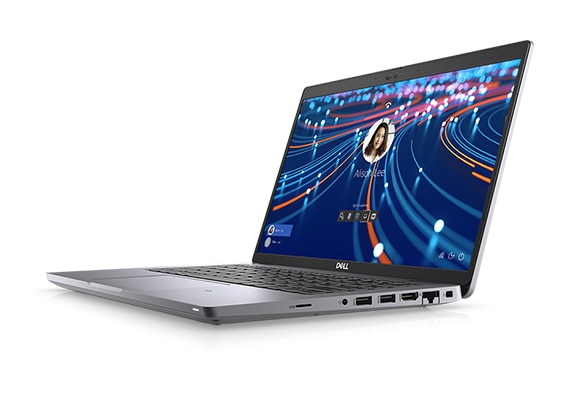
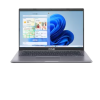
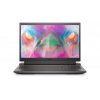
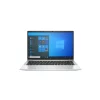
A refurbished Dell Latitude 5420, ready for its first day. Check the model, the RAM and the storage before you start using it.
Your first 10 minutes: unbox, look and power on
Start with the box. A good shop packs a refurbished laptop well, with the laptop wrapped and the charger in the box. Open it on a clean table, not on a bed or a sofa, so nothing falls and nothing blocks the vents. Take the laptop out and look at it in good light. Check the screen for cracks, the body for dents, and the corners for damage. A few light marks are normal on a refurbished laptop. A crack, a dent or a loose hinge is not normal, and you should tell the shop at once.
Now plug in the charger and press the power button. The laptop should start in under a minute. A fast SSD makes Windows start in seconds. If it takes a very long time, or it stops on a black screen, do not panic. First check that the charger light is on and the plug is in properly. If it still will not start, call the shop. At Khaleej Electronics every laptop passes a full test before delivery, and a laptop that will not start is covered by our 12 month warranty and our 10 day returns.
When Windows opens, it will ask you to pick a language, a region and a Wi-Fi network. Pick English, pick UAE as your region, and connect to your home or office Wi-Fi. If the laptop asks you to sign in with a Microsoft account, use your own account. If you do not have one, you can make one for free in a few minutes. Your Microsoft account keeps your settings and your files safe if you ever need to reset the laptop.
Step 1: check the laptop matches what you ordered
This is the most important check, and it takes two minutes. Right click on the Start button, then click System. You will see the processor, the RAM and the Windows version. Check them against your order. If you bought a Dell Latitude 5420 with a Core i5 11th Gen chip, 16GB of RAM and a 512GB SSD, that is what the screen should say. If anything is different, tell the shop the same day.
Next check the storage. Open File Explorer, click This PC, and look at the C drive. A 512GB SSD should show about 470GB of free space after Windows is installed. A 256GB SSD should show about 220GB free. The number is always a bit less than the label, because Windows itself takes room. That is normal. If the drive is much smaller than you ordered, tell the shop.
Also check the screen size and the keyboard. A 14 inch laptop should feel right for work and travel. A 15.6 inch laptop, like the Dell Latitude 5520, is bigger and better for long work at a desk. Type a few lines in Notepad to test every key. Press each key once. A stuck key or a key that types the wrong letter should be fixed by the shop, not by you.
Step 2: connect to Wi-Fi and run Windows Update
Once you are on Wi-Fi, run Windows Update before you install anything else. Click Start, then Settings, then Windows Update, then Check for updates. Let it download and install everything it finds, then restart the laptop when it asks. This can take 20 to 40 minutes on a first run, because a refurbished laptop may have been tested weeks before you bought it. Do it now, not later, because updates fix security holes and make Windows run better.
While updates run, do not unplug the charger. Let the laptop sit on a hard flat table with air around it. Do not put it on a bed or a sofa, because soft surfaces block the vents and the laptop gets hot. If the laptop feels warm during updates, that is normal. It is working hard. If the fan is very loud for a long time, or the laptop shuts down on its own, that is not normal. Read our guide on how to fix a laptop that overheats in Dubai to tell the difference, or bring it in for a free diagnosis.
After updates finish, check the drivers too. Windows Update installs most drivers on its own. If a device still shows a warning in Device Manager, the shop can fix it in minutes. At our shop we install Windows 11 Pro fresh on every laptop, with the right drivers, so this step is usually quick. If you bought a laptop that runs Windows 11, check that it says Windows 11 Pro in Settings. A 10th Gen or newer chip, like the one in the Dell Latitude 7410 or the Latitude 5330, runs Windows 11 properly for years to come.
Step 3: check the battery and the storage health
A refurbished laptop battery is used, not new, so check it on day one. Unplug the charger and use the laptop on battery for an hour. A healthy battery should drop slowly, not fast. A Dell Latitude 5420 or 7420 in good shape gives you several hours of office work on one charge. If the battery drops from 100 to 20 in under an hour with light use, the battery is weak, and the shop should replace it under warranty.
You can also check the battery in Windows. Open Command Prompt, type powercfg /batteryreport, press Enter, and open the report it makes. It shows the design capacity and the full charge capacity. If the full charge is above 70 percent of the design capacity, the battery is in good shape for a refurbished laptop. Below 50 percent, ask the shop about a replacement.
Check the storage health too. A refurbished laptop should have a healthy SSD, not a dying one. Open Settings, then System, then Storage, then Advanced storage settings, then Disks and volumes. Click your drive and look at its health. Windows will say Good if the drive is fine. If it says anything else, tell the shop at once. A healthy SSD is one of the things our full inspection checks before delivery, and it is covered by the 12 month warranty.
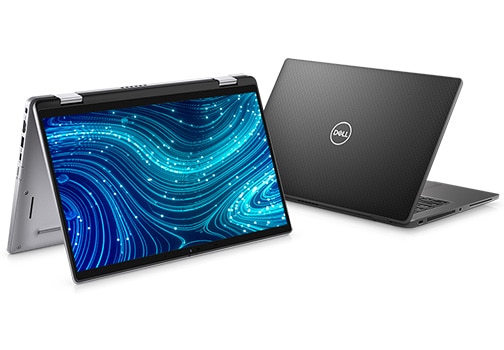
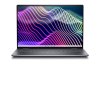
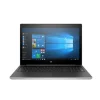
A refurbished Dell Latitude 7420. Run Windows Update and check the battery on day one, while your 10 day return window is open.
Step 4: sign in to your accounts and set up security
Now sign in to the accounts you use every day. Your Microsoft account is first, because it syncs your settings and your OneDrive files. Then your email, your Google account, and your browser. If you use Chrome or Edge, sign in so your bookmarks and passwords come across. Use a strong password for each account, and turn on two step verification for your email and your bank. It takes two minutes and it stops most account theft.
Turn on Windows Security too. It is built into Windows 11 and it is free. Click Start, then Settings, then Privacy and security, then Windows Security. Make sure virus protection is on and the firewall is on. You do not need to buy extra antivirus software. Windows Security is enough for most people, and it does not slow the laptop down the way some paid antivirus apps do.
Set a screen lock as well. A PIN is quick and safe. Go to Settings, then Accounts, then Sign-in options, and set a PIN. If your laptop has a fingerprint reader, set that up too. Many Dell Latitude models, including the 5420 and the 7420, have a fingerprint reader built in. It takes one minute to set up and it makes signing in much faster every day.
Step 5: move your files from your old laptop
Moving your files is the step most people worry about, and it is simpler than it looks. If you used OneDrive or Google Drive on your old laptop, just sign in on the new laptop and your files will download on their own. Give it time on Wi-Fi and let it finish. If your files are only on the old laptop, use a USB drive or an external hard drive. Copy the files to the drive, plug it into the new laptop, and copy them into the right folders.
Move your documents, your photos and your desktop files first. Those are the files you will miss if they are lost. Then move your browser bookmarks. In Chrome, sign in and they come across on their own. In Edge, the same. If you use WhatsApp on your laptop, sign in again on the new machine and let it sync. Do not delete anything from your old laptop until you have opened the files on the new one and checked they are all there.
If you bought your refurbished laptop from us and you are in Dubai or Sharjah, ask us about data transfer. We can move your files from your old laptop to your new one in the shop, so you do not have to do it yourself. Read our guide on how to transfer data to a new laptop in Dubai for the full steps, or bring both laptops in and we will do it for you.
Step 6: install the apps you actually use
Install only the apps you need. A fresh laptop is fast because it has nothing extra on it. Keep it that way. Start with your browser, then Microsoft Office or Google Docs, then the apps for your work or study, like Zoom, Teams or WhatsApp. Download apps only from their real websites or from the Microsoft Store. Do not download apps from random sites, because they often carry junk software that slows the laptop down.
Skip the apps you do not use. You do not need three media players, two PDF readers and a cleaner app. Windows 11 already has a media player, a PDF reader and a disk cleanup tool built in. Every extra app you install takes room, runs in the background, and slows the laptop down a little. A clean laptop stays fast for longer.
One app worth installing is your cloud backup. OneDrive comes with Windows, and Google Drive is free to install. Turn on backup for your Documents and Desktop folders. If the laptop is ever lost or the drive fails, your files are safe in the cloud. It takes five minutes to set up and it saves you from the worst day of your digital life.
Step 7: test everything in your first 10 days
Your first 10 days are your test window. At Khaleej Electronics you get 10 day returns and a 12 month warranty, so use those first 10 days to test the laptop properly. Test the Wi-Fi in different rooms. Test the Bluetooth with your headphones. Test every USB port with a drive or a mouse. Test the webcam on a video call. Test the speakers with a song. Test the microphone on a voice note. If anything does not work, tell the shop while you are still in the window.
Also test the laptop the way you will really use it. Open the apps you use for work or study, all at once, and see how it feels. A Dell Latitude 5430 with 16GB of RAM should handle Office, Chrome with many tabs, and Teams together without slowing down. A Dell Latitude 7300 with 8GB of RAM should handle office work well, but it will slow down if you open too many heavy apps at once. That is normal for 8GB. If it slows down with only one or two apps open, that is not normal, and the shop should look at it.
Keep the laptop on a hard flat surface while you test it. A bed or a sofa blocks the vents and makes the fan loud, and that can make a good laptop look bad. If the fan is loud on a desk with light use, or the laptop shuts down on its own, bring it in for a free diagnosis. Most problems are simple, like dust in the vents or a driver that needs an update, and we fix them free under warranty.
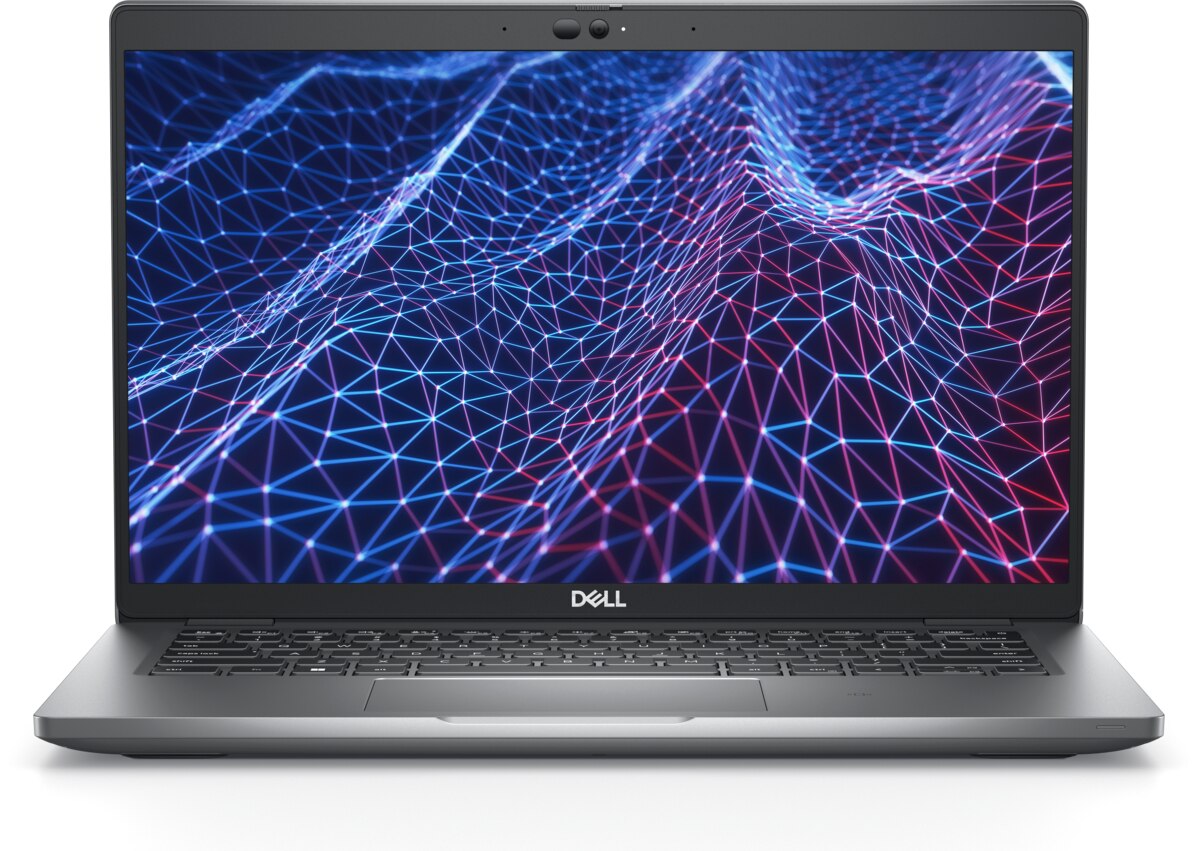
A refurbished Dell Latitude 5430. Test every port, every key and the webcam in your first 10 days, while returns are still open.
First day setup checklist
Print this list or keep it open on your phone. Tick each item as you finish it.
| Step | What to do | Done |
|---|---|---|
| 1 | Check the box, the screen, the body and the hinges for damage | |
| 2 | Plug in the charger and power on, check it starts in under a minute | |
| 3 | Check the processor, RAM and storage match your order | |
| 4 | Connect to Wi-Fi and run Windows Update until it says you are up to date | |
| 5 | Check the battery report and the storage health in Settings | |
| 6 | Sign in to your Microsoft account, email and browser | |
| 7 | Turn on Windows Security and set a PIN or fingerprint lock | |
| 8 | Move your documents, photos and bookmarks from your old laptop | |
| 9 | Install only the apps you need, from their real websites or the Microsoft Store | |
| 10 | Test every port, key, the webcam, speakers and microphone in your first 10 days |
Common mistakes to avoid
The first mistake is skipping Windows Update. A laptop that has not been updated is open to security problems, and it often runs slower than it should. Run the updates on day one, even if it takes half an hour. The second mistake is installing apps from random sites. They bring junk software that slows the laptop and sometimes carries malware. Download only from real websites and the Microsoft Store.
The third mistake is using the laptop on a bed or a sofa. Soft surfaces block the vents, the laptop gets hot, the fan gets loud, and the battery wears out faster. Always use a hard flat surface, or a laptop stand. The fourth mistake is deleting files from your old laptop before you check them on the new one. Keep the old laptop until you have opened every file on the new machine and you are sure nothing is missing.
The fifth mistake is ignoring a small problem and hoping it goes away. A key that sticks, a port that works only sometimes, or a battery that drains fast will not fix itself. Tell the shop in the first 10 days, while returns are open and diagnosis is free. A problem reported on day 3 is a quick fix. The same problem reported on day 90 is still covered by warranty, but it costs you time you did not need to lose.
What if something is wrong with your refurbished laptop?
First, do not try to open the laptop or fix it yourself. Opening the case can void your warranty and can damage the machine. Call or WhatsApp the shop and describe the problem in plain words. A good shop will ask a few questions, try a simple fix over the phone, and ask you to bring the laptop in if it needs hands on work.
At Khaleej Electronics, diagnosis is free, always. Bring the laptop to our Sharjah shop and we will test it in front of you. If it is a warranty problem, we fix it free under the 12 month warranty. If you are still in your first 10 days and the laptop is not right, we will replace it or take it back. That is what the 10 day return window is for, and you should use it if you need it.
If you bought from another shop, check what they promised. A shop that offers no warranty and no returns is a risk, and a problem on day one is your problem alone. That is why it pays to buy from a shop with a real address, a written warranty and a free diagnosis promise. A refurbished laptop is a smart buy, but only when the shop stands behind it.
Which refurbished laptop is a good first buy?
If you have not bought yet, or you are buying a second laptop for the family, here are the picks our customers ask for most. The Dell Latitude 5420 at AED 1,239 is the all rounder, with a Core i5 11th Gen chip, 16GB of RAM and a 512GB SSD. The Dell Latitude 7420 at AED 1,539 is the step up, with a Core i7 11th Gen chip for heavier work. The Dell Latitude 5430 at AED 1,999 is the newest 12th Gen pick, with the latest chip and a 512GB SSD. On a tighter budget, the Dell Latitude 7300 at AED 689 is the cheapest way into a proper business laptop, and the Dell Latitude 5520 at AED 1,129 is the 15.6 inch pick for people who want a bigger screen. Every one of them comes with our 12 month warranty, 10 day returns, free delivery and cash on delivery across Dubai and Sharjah. If you are not sure which one fits you, read our guide on how to choose a refurbished laptop in Dubai first, or message us on WhatsApp and we will help you pick.
Frequently asked questions
How long does it take to set up a refurbished laptop in Dubai?
About an hour. Checking the specs takes two minutes, Windows Update takes 20 to 40 minutes, and signing in and installing your apps takes another 20 minutes. Let the updates run while you have tea. Do not rush the updates, because they fix security holes and make Windows run better.
Should I reset a refurbished laptop when I buy it?
No, not if you bought it from a good shop. A proper refurbished laptop arrives with Windows freshly installed and activated, with no old user files on it. If the laptop still has the last owner’s files or apps on it, that is a sign the shop did not reset it properly, and you should tell them at once. Do not wipe it yourself before you check the specs, because a reset can hide a problem you need to report.
Can a refurbished laptop run Windows 11?
Yes, if it has an 8th Gen processor or newer. Most of the laptops we sell meet this rule, including the Latitude 5420, 7420, 5430, 7410 and 5330. A 7th Gen or older laptop, like the Latitude 5480, runs Windows 10 instead. Read our guide on whether a refurbished laptop can run Windows 11 in Dubai to check your model before you buy.
What should I check first on a refurbished laptop?
Check three things first. The specs match your order, the battery holds a charge for a few hours of normal use, and every port, key and the webcam work. Those three checks catch most problems. Do them in your first 10 days, while returns are open. Our hands on checklist for checking a refurbished laptop before buying covers the same checks in more detail, and it is worth reading before you buy as well as after.
Ready to buy, or need help with your new laptop?
Setting up a refurbished laptop is simple when the laptop is good and the shop stands behind it. Check the specs, run the updates, test the battery, move your files, and test everything in your first 10 days. That is the whole job, and it takes about an hour.
If you have just bought a laptop from us and something does not feel right, message us on WhatsApp at +971 58 959 4156 and we will help. Diagnosis is free, always, and every laptop carries a 12 month warranty with 10 day returns. If you are still looking, browse our refurbished laptops in Dubai and pick the one that fits your work and your budget. Order on WhatsApp and pay on delivery, anywhere in Dubai or Sharjah.