










How to Transfer Data to Your New Refurbished Laptop in Dubai
Short answer: the easiest way to transfer data to your new laptop is a USB flash drive or an external hard drive for big files, or cloud storage like Google Drive or OneDrive for smaller files and photos. Copy your files from the old laptop, paste them on the new one, and check that everything opened before you wipe the old machine. The whole job takes 30 minutes to a few hours, depending on how much data you have. Always back up first, and never wipe the old laptop until you have checked the new one.
You just bought a refurbished laptop in Dubai, and now your files, photos, passwords and apps are still on the old machine. This guide walks you through every method in plain steps, from the simple USB copy to the free Windows tools, so you can move everything safely and start using your new laptop the same day.
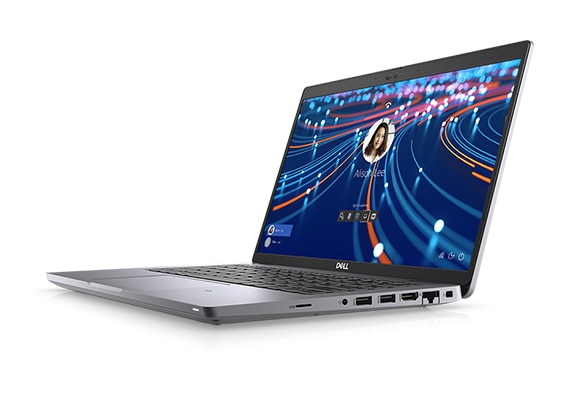
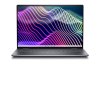
A refurbished Dell Latitude, ready for your files. Move your data first, then wipe the old laptop, never the other way round.
Before You Move Anything: The 10 Minute Backup Check
Never start a transfer without a backup. If a copy fails halfway, or you pick the wrong folder, a backup saves your files. Take ten minutes and do these checks first.
1. Make a list of what matters
Open your old laptop and write down what you must keep. Most people forget something. Your list should cover documents, photos, videos, music, browser bookmarks, saved passwords, email files, and any work folders. Check your Desktop, Documents, Downloads, Pictures and Videos folders one by one. Also check for files saved in odd places, like a folder on the C drive or inside an app folder.
2. Copy the important files to a second place
Before the transfer, copy your most important files to a USB drive or to cloud storage as a safety net. This is your backup. If the main transfer goes wrong, you still have the backup. Do this even if you plan to use the cloud for the whole transfer. Two copies are always safer than one.
3. Check how much data you have
Right click your main folders and check their size. If your files total less than 32GB, a normal USB flash drive is enough. If you have 100GB or more of photos and videos, you need an external hard drive or a cloud plan with enough space. Knowing the size first stops you from starting a transfer that cannot finish.
4. Charge both laptops and use WiFi you trust
Plug both laptops into power before you start. A laptop that dies halfway through a copy can corrupt files. If you use WiFi for the transfer, use your home WiFi, not a public network in a mall or cafe. Your files travel over that network, so keep it private.
Golden rule: never wipe, sell or give away the old laptop until you have opened your files on the new laptop and checked that they work. The old laptop is your backup until the new one proves itself.
Method 1: USB Drive or External Hard Drive (Best for Most People)
This is the simplest and fastest method for most people in Dubai. It needs no internet, no account and no special software. It works for Windows to Windows, and for large files like videos.
- Plug a USB flash drive or external hard drive into the old laptop.
- Open File Explorer and copy the folders you want: Documents, Pictures, Videos, Desktop and Downloads.
- Paste them onto the USB drive. Wait for the copy to finish fully. Do not unplug the drive early.
- Plug the drive into the new laptop and copy the folders to the same places.
- Open a few files on the new laptop to check they work, then keep the drive as a backup for a week.
A USB 3.0 flash drive moves about 100MB per second, so 32GB takes around 6 minutes. An external hard drive is better for 500GB or more. If your old laptop has a USB-C port only, use a USB-C drive or a small adapter. Our UGREEN USB-C hubs add normal USB ports to laptops that only have USB-C, and they cost less than a new drive.
Method 2: Cloud Storage (Best for Photos and Small Files)
Cloud storage moves your files through the internet. Google Drive, OneDrive and Dropbox all work the same way. Upload from the old laptop, then download or sync on the new one. This method is best for documents and photos under 15GB, which is the free limit on Google Drive. OneDrive gives 5GB free, and it is built into Windows 11, so many people already have it.
How to do it with Google Drive
- On the old laptop, open drive.google.com and sign in.
- Click New, then Folder upload, and pick your Documents and Pictures folders.
- Wait for the upload to finish. Big uploads take time on slow internet.
- On the new laptop, open the same Google account and download the folders, or install Google Drive for Desktop to sync them.
How to do it with OneDrive
On the old laptop, open OneDrive from the taskbar and sign in with your Microsoft account. Turn on backup for Desktop, Documents and Pictures. Wait for the sync to finish. On the new laptop, sign in with the same Microsoft account during setup, and OneDrive will bring your files down by itself. This is the easiest method if you already use a Microsoft account, but it needs good internet for large files.
Cloud storage is slow for videos and huge photo collections. A 100GB upload can take a full night on a normal home connection in Dubai. For big files, use Method 1 instead. Also check your cloud storage limit before you start. If you run out of free space, the upload will stop halfway.
Method 3: WiFi Transfer With Windows Nearby Sharing
Windows 11 has a free tool called Nearby Sharing. It sends files from one Windows laptop to another over WiFi or Bluetooth, with no cable and no USB drive. It works well for a few gigabytes, like a folder of documents and photos.
- On both laptops, open Settings, then System, then Nearby Sharing, and turn it on for everyone nearby.
- On the old laptop, right click a file or folder, click Share, and pick the new laptop from the list.
- On the new laptop, click Save to accept the files.
- Repeat for each folder you want to move.
Keep both laptops on the same WiFi network and close together. Nearby Sharing is slower than a USB drive for big files, so use it for documents and photos, not for a 200GB video collection. If the new laptop does not appear in the share list, check that Bluetooth is on and both laptops are on the same network.
Method 4: Direct Cable or Network Transfer (Best for Very Large Moves)
If you have hundreds of gigabytes to move, a cable or a shared network folder is the fastest free method. Connect both laptops to the same router with Ethernet cables if you can, or use the same WiFi network. On the old laptop, right click a folder, pick Properties, then Sharing, and share it on the network. On the new laptop, open File Explorer, click Network, open the old laptop, and copy the folders. This moves data at network speed, which is far faster than the cloud and needs no USB drive at all.
This method takes a little setup, so it suits people who are comfortable with Windows settings. If the steps feel hard, use a USB external hard drive instead. The result is the same, and the drive gives you a backup too.
Which Method Should You Pick?
| Method | Best for | Speed | Needs |
| USB drive or external hard drive | Most people, big files | Fast | A USB drive or hard drive |
| Cloud storage | Documents and photos under 15GB | Slow for big files | Internet + a Google or Microsoft account |
| Nearby Sharing | A few GB, Windows to Windows | Medium | WiFi + Bluetooth on both laptops |
| Network or cable transfer | Hundreds of GB | Very fast | Same network, a little setup |
For most buyers of a refurbished laptop, the USB method plus a cloud backup is the best mix. Copy with USB for speed, and keep a cloud copy of your most important files for safety.
Apps do not transfer with your files. You need to install them again on the new laptop. Make a list of the apps you use every day, like Chrome, WhatsApp Desktop, Microsoft Office, Zoom and VLC, and install them fresh from their official websites. Do not copy program folders from the old laptop. That does not work, and it can break the new system.
Your browser bookmarks and passwords can move if you sign into the same browser account. In Chrome, sign into your Google account and turn on sync. In Edge, sign into your Microsoft account. Your bookmarks, history and saved passwords will appear on the new laptop in a few minutes.
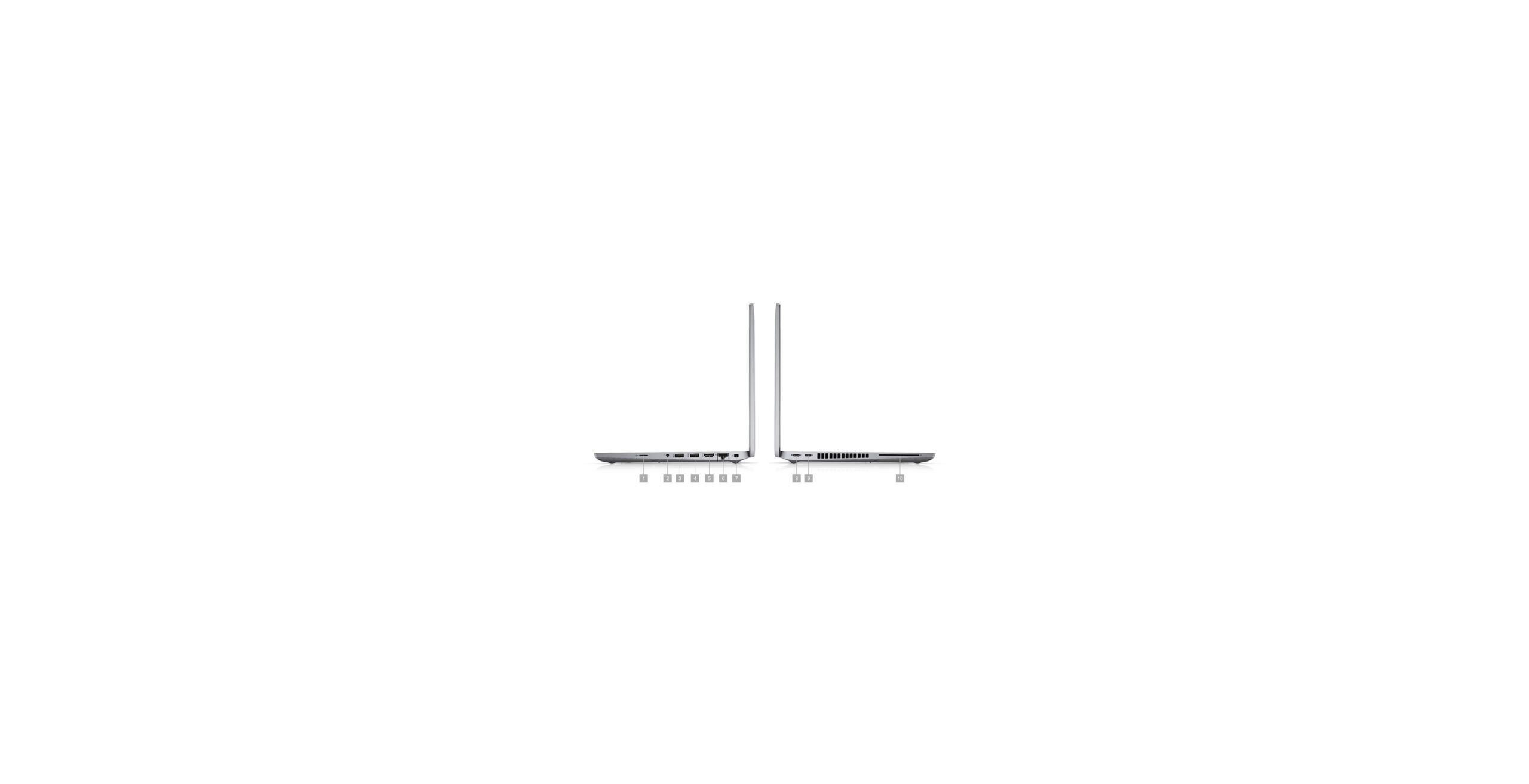
Reinstall your apps fresh on the new laptop. Copying program folders from the old machine does not work.
Moving From Windows to Windows: What Transfers and What Does Not
Your files transfer easily. Your settings partly transfer. Your apps do not transfer at all. Here is the plain list.
- Transfers easily: documents, photos, videos, music, downloads, desktop files.
- Transfers with your account: browser bookmarks and passwords, OneDrive files, Microsoft Store apps you own, Windows settings if you sign in with the same Microsoft account.
- Does not transfer: installed programs, drivers, games that need a fresh install, license keys for paid software unless you have the key saved.
- Needs your key: Microsoft Office, Adobe apps and other paid software. Find your license key or your account login before you wipe the old laptop.
Before you wipe the old laptop, open your email and check for license keys and purchase receipts. Many people lose paid software because the key was only in an old email. Save those keys in a text file and copy it to the new laptop first.
Moving From a Mac to a Windows Laptop (and the Other Way)
If your old laptop is a Mac and your new one is Windows, use a USB drive formatted as exFAT, which both systems can read. Copy your files to the drive on the Mac, then plug it into the Windows laptop. Cloud storage also works well here, since Google Drive and OneDrive run on both systems. Photos from Apple Photos need to be exported first. Open Photos on the Mac, select the photos, and use File, then Export, to save them as normal image files. If you skip this step, you may only move small preview files, not the real photos.
Going from Windows to Mac is the same in reverse. Use exFAT or cloud storage. For a refurbished MacBook, the same USB method works. Our Dell Latitude 7390 2-in-1 at AED 839 is a good Windows choice if you want a touchscreen laptop for the same kind of flexible use.
After the Transfer: The Checklist Before You Wipe the Old Laptop
Do not wipe the old laptop yet. Run through this checklist on the new laptop first.
- Open your Documents, Pictures and Videos folders and check the file counts match the old laptop.
- Open five photos, three documents and one video to confirm they open without errors.
- Check your browser bookmarks and saved passwords are there.
- Open your email and confirm your messages and contacts are synced.
- Check that your important apps are installed and signed in.
- Check that your printer, mouse and other devices work on the new laptop.
- Run Windows Update once, so the new laptop has the latest fixes.
Only when every box is ticked should you wipe the old laptop. To wipe it safely, use Windows Settings, then System, then Recovery, then Reset PC, and pick Remove everything. That removes your files before you sell or give the laptop away. For a full guide on what to check before buying a refurbished machine in the first place, read our guide on how to check a refurbished laptop before buying.
Common Transfer Problems and Quick Fixes
The USB drive is too small
Split the transfer into parts. Move Documents first, then Pictures, then Videos. Or buy a bigger drive. A 128GB USB 3.0 drive costs little and holds most personal files. For very large collections, an external hard drive is cheaper per gigabyte.
The copy stops halfway
This is usually a bad USB port, a loose cable, or a single damaged file blocking the copy. Try another USB port. Copy in smaller batches so one bad file does not stop the whole job. If one file keeps failing, skip it and copy it alone later. Note the file name so you can check it on the old laptop.
Files open on the old laptop but not the new one
You may be missing the app that opens that file type. Install the right app first. For example, a PSD file needs Photoshop, and an old Word document may need a newer Office version. Also check that the file copied fully. A file that is much smaller on the new laptop than on the old one did not finish copying.
The new laptop feels slow after the transfer
A fresh laptop should feel fast. If it feels slow, check how much free space is left on the SSD. A drive that is more than 90 percent full slows down. Also let Windows Update and your cloud apps finish syncing before you judge the speed. If it is still slow, read our guide on how to tell if your laptop needs an SSD upgrade.
A refurbished laptop with a big SSD makes the transfer easier, because you have room for everything. The Dell Latitude 5420 at AED 739 has a 512GB SSD and 16GB RAM, which is plenty for most people moving from an old laptop. If you want more power, the Dell Latitude 7420 at AED 1,039 adds a faster i7 processor, and the Lenovo ThinkPad T14 Gen 3 at AED 1,829 is the newest and fastest of the three.
All three come with a 12 month warranty, 10 day returns, free delivery in Dubai and Sharjah, and cash on delivery. If your old laptop has stopped working completely, read our guide on what to do when your laptop won’t turn on before you give up on your files. In many cases the files can still be saved even if the laptop will not start.
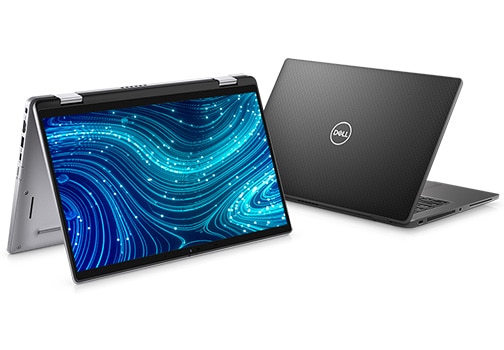
A 512GB SSD gives you room for all your files. The Latitude 5420 and 7420 both come with 512GB and 16GB RAM.
Frequently Asked Questions
What is the fastest way to transfer data to a new laptop?
A USB flash drive or an external hard drive is the fastest for most people. Copy your folders to the drive on the old laptop, then copy them to the new one. No internet is needed, and large files move quickly.
Can I transfer data from my old laptop without a USB drive?
Yes. Use cloud storage like Google Drive or OneDrive, or Windows Nearby Sharing over WiFi. Cloud storage is best for files under 15GB. Nearby Sharing works well for a few gigabytes between two Windows laptops on the same WiFi network.
Do my apps transfer to the new laptop?
No. You need to install apps again on the new laptop from their official websites. Your files, bookmarks and passwords can transfer if you sign into the same browser and Microsoft or Google account, but installed programs do not move with a file copy.
How do I know the transfer worked before I wipe my old laptop?
Open your files on the new laptop and check them. Open five photos, three documents and one video. Check your bookmarks and email. Compare folder sizes with the old laptop. Only wipe the old laptop when everything opens and the counts match.
Just bought a refurbished laptop and need help moving your files? Browse our refurbished laptops in Dubai, all tested, with a 12 month warranty, 10 day returns and Cash on Delivery across Dubai and Sharjah. Questions? WhatsApp us on +971 58 959 4156 and tell us what you need to move. We will help you pick the right laptop and the right transfer method.