











How to Check a Refurbished Laptop Before Buying in Dubai and the UAE
A refurbished laptop can save you hundreds of dirhams, but only if you check it properly before you pay. The checks in this guide take about 15 minutes in a shop, or about 30 minutes at home after delivery. This is a practical refurbished laptop checklist for the UAE. Follow it in order and you will spot a weak battery, a faulty screen, a dead key, or a missing warranty before your money leaves your pocket. That is the whole point of learning how to check a refurbished laptop before buying. You test first, then you pay with confidence.
The quick answer: Check the exact specs in Windows, the battery health (aim for 80 percent or more), the SSD health, the screen on white and black, every key, every port, Wi-Fi, webcam, speakers, the charger, Windows activation, and the warranty in writing. If the seller lets you test all of this, you can buy with confidence. If the seller rushes you or hides the numbers, walk away.
What does refurbished mean, in one minute?
A refurbished laptop is a laptop that was used before, then taken back, checked by a technician, repaired where needed, cleaned, and tested again before it is sold. Many of the business laptops we sell were corporate laptops. A company used them for two or three years, then returned them when it bought new machines. The laptops were built to last, so they still have years of life left.
That is different from a used laptop sold as it is. A used laptop is sold by one person to another with no checks, no repairs, and no warranty. If it fails a week later, you carry the cost. A refurbished laptop from a proper seller comes with tests done, parts replaced where needed, and a warranty behind it. Our guide on refurbished vs renewed vs used laptops in Dubai explains the full difference, but the rule is simple. Pay for refurbished, not for used, when you want a laptop that has been checked.
The 15-point checklist: how to check a refurbished laptop before buying
Work through these 15 checks in order. Each one takes a minute or two. You need no special tools. A phone, the charger, and a USB stick are enough for most of them. Keep this list on your phone when you check a refurbished laptop before buying in Dubai, Sharjah, or anywhere in the UAE. If you are buying online, use the same list in the first days after delivery, while your return window is still open. If you are buying in a shop in Sharjah or Dubai, run the list at the counter before you pay.
1. Match the exact model and specs
Do not trust the sticker or the listing alone. Open Settings, then System, then About. Check the exact processor model and generation, the RAM amount, and the storage size. Open Task Manager, then Performance, and confirm the same numbers there. A listing that says Core i5 tells you almost nothing. An i5 11th Gen and an i5 6th Gen are very different machines. For Windows 11, look for an 8th Gen Intel processor or newer. If the specs on the screen do not match the listing, stop and ask the seller to explain. Never pay for specs you cannot see on the machine itself.
2. Check the battery health number: aim for 80 percent or more
The battery is the part most likely to show the previous owner’s habits, so a proper refurbished laptop battery health check is the most important test on this list. On Windows, open Command Prompt and type powercfg /batteryreport. The report shows the design capacity and the full charge capacity. Divide the full charge capacity by the design capacity and multiply by 100. That is the battery health percent. 80 percent or more is good for daily work. 90 percent or more is like new. Below 70 percent, plan for a replacement soon. Also ask for the cycle count and run the laptop unplugged for 15 minutes. If the percent drops fast, the battery is weaker than the number suggests. If the case bulges or the trackpad lifts, stop using the laptop at once. That is a swollen battery and it is not safe. Our full battery health guide shows the steps with pictures and explains what every number means.
3. Check the SSD health and make sure it is an SSD
Storage decides how fast a laptop feels. Open Task Manager, then Performance, then Disk. It should say SSD, not HDD. An old laptop with an SSD feels faster than a newer laptop with a hard drive. Then check the SSD health with a free tool such as CrystalDiskInfo. It reads the drive data and gives a health percent. Look for 90 percent or more. A drive below 70 percent may fail soon, and a failing drive can take your files with it. Also confirm the size. 256GB is the minimum for most buyers. 512GB is better if you keep a lot of photos and videos.
4. Test the screen on white and black
The screen is the most expensive part to replace, so test it with care. Open a plain white image full screen, then a plain black image full screen. Look for dead pixels, bright dots, lines, dark patches, and pressure marks. Check backlight bleed on the black screen in a dim room. Bright patches near the edges mean the panel is tired. Then test the brightness at low and high levels and check the resolution in Settings, then System, then Display. 1920 x 1080, called Full HD, is what you want. A 1366 x 768 screen feels cramped for work and study. Small scuffs on the lid are normal and fine. Screen faults are not.
5. Test every keyboard key
Open Notepad and press every key. Include the letters, the number row, the function keys, the arrow keys, Enter, Backspace, Shift, Ctrl, and the spacebar. Watch for keys that do not register, keys that repeat on their own, and keys that feel sticky or need hard presses. One dead key becomes a daily annoyance within a week. If the laptop has a backlit keyboard, switch the light on and check it works. Shiny keycaps on the most used keys tell you the laptop had a busy life. That is not a fault by itself, but it should match the grade and the price.
6. Test the trackpad
Move one finger in slow circles across the trackpad and watch for dead zones where the cursor jumps or stops. Tap, double tap, and try two finger scrolling. Press the left and right click and check the click feels crisp, not soft or mushy. If the trackpad lifts or clicks by itself, ask the seller about it. A lifting trackpad can be a sign of a swollen battery underneath, so treat it as a warning and check point 2 again.
7. Test every port
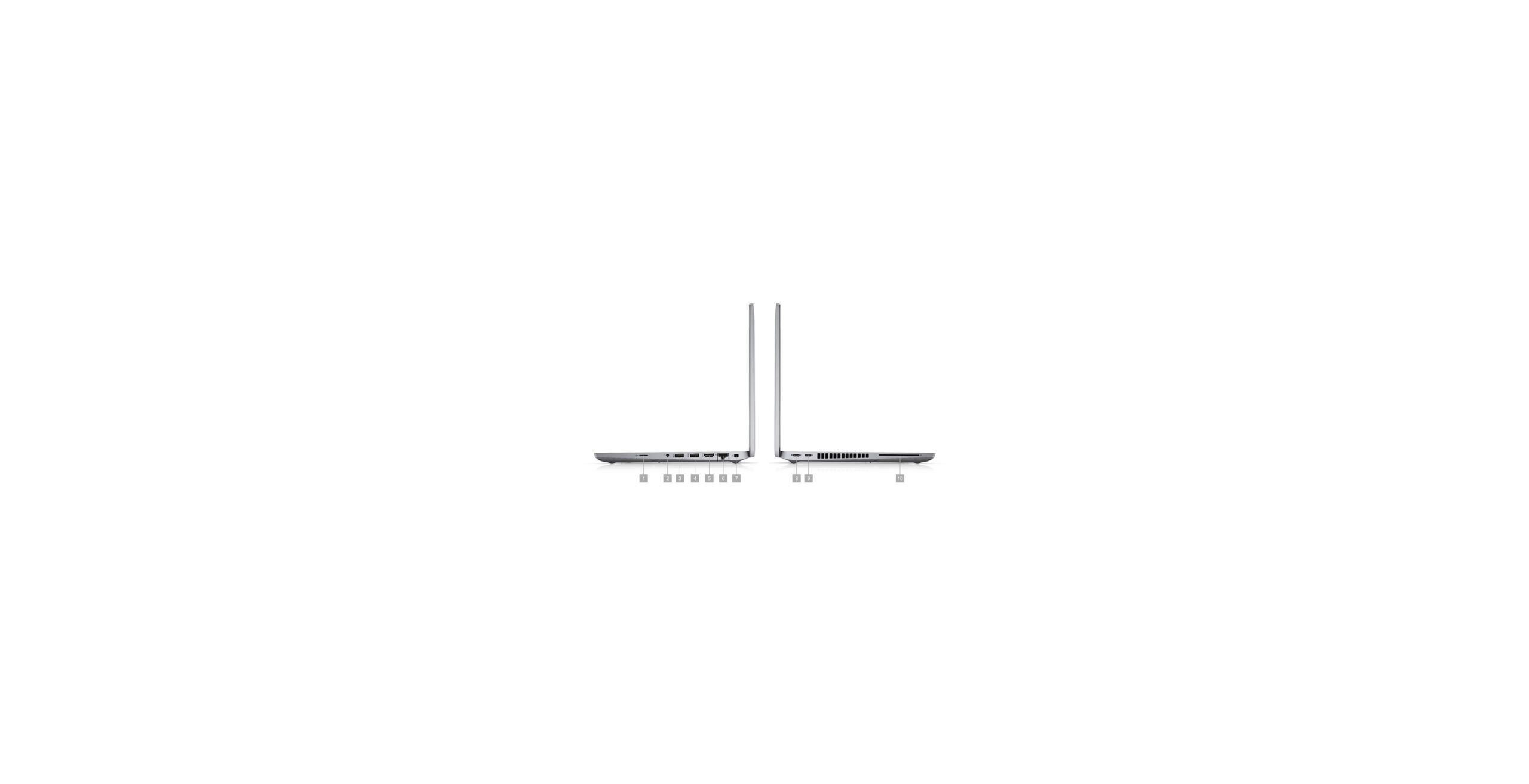
Plug a USB stick into every USB port and check that each one reads the stick. If you use a monitor, plug in the HDMI port and check the picture appears. Plug earphones into the audio jack and check sound comes through both sides. Test the USB-C port with the charger and the SD card slot if the laptop has one. A dead port is easy to miss and annoying to live with. This check takes two minutes and saves a return trip. If a port is loose or only works when you wiggle the plug, count it as a fault.
8. Test Wi-Fi, Bluetooth, webcam, speakers, and mic
Connect to Wi-Fi and browse for a few minutes. A weak Wi-Fi card drops the connection or shows very slow speeds. Pair a Bluetooth device if you have one nearby. Open the Camera app and check the webcam picture is clear and not dark or flickering. Play a video with sound and listen for crackling or one dead speaker. Join a test video call and check the mic picks up your voice. These parts are cheap to test and costly to fix, so test them all before you pay.
9. Check the charger
A weak charger can look like a weak battery. Check the wattage on the charger label and match it to your model. A Dell Latitude 5420 needs a 65W USB-C charger, for example. Check the cable for cuts and frayed ends. Plug it in and watch the laptop charge while you use it. If the charge percent falls while plugged in, the charger is too weak or faulty. Never use a charger that sparks or smells hot. Ask the seller whether the charger is the original brand charger or a good replacement, and make sure it is included in the price.
10. Check Windows is activated and Windows 11 is supported
Open Settings, then System, then Activation. Windows should say activated. A laptop with no activation will nag you and limit some settings. Then check Windows 11 support. Support for Windows 10 ended on 14 October 2025, so a laptop that cannot run Windows 11 has a short life ahead of it. Ask the seller which Windows version is installed and whether the laptop is officially compatible with Windows 11. A proper refurbished seller installs a licensed, activated Windows and tells you the version before you buy.
11. Check for locks and old accounts
A locked laptop is a laptop you cannot fully use. Check that there is no BIOS password. Ask the seller to restart the laptop in front of you and confirm it boots straight to the desktop with no password prompt you did not set. Check that no company device management is left on the machine. On a MacBook, check that Activation Lock is off and the previous owner has signed out. Ask the seller to reset the machine in front of you if anything looks unclear. A seller who refuses this check is hiding something.
12. Check the hinges, body, and fans
Open and close the lid slowly at different angles. It should stay in place when you let go, not drift or flop. A hinge that will not hold its position is worn out. Look for cracks, dents, missing screws, and loose panels. Press the palm rest lightly and check for flex. Listen to the fan. It should be quiet at rest and steady under load. A fan that sounds like a blender, or a laptop that gets very hot in a few minutes, has a cooling problem. Also look near the ports for corrosion or a faint odd smell. Both can point to an old liquid spill, and spill damage can fail months later.
13. Run a quick stress test
Open several apps at once, play a video, and browse with a few tabs open. Watch for freezing, sudden shutdowns, or a fan that screams the whole time. Ten minutes of normal heavy use is enough to catch the big problems. If you test a used laptop before buying, this is the step that separates a good machine from a tired one. A healthy refurbished laptop should handle office work, video calls, and browsing at the same time without drama. If it struggles with basic tasks, the specs are not what the listing promised, or the cooling needs work.
14. Check the grade and ask for real photos
Good sellers grade their laptops by cosmetic condition. Grade A looks almost new. Grade B works the same but shows light marks. The grade should describe the outside only. Performance should be the same either way. Ask for real photos of the actual unit you will receive, not a stock photo from the maker. The photos should show the screen, the keyboard, and any marks the seller knows about. If a seller shows only stock photos and will not share real ones, be careful. Honest photos are a sign of an honest seller.
15. Get the warranty and return window in writing
This is the check that protects everything else. Get the warranty in writing before you pay. A good refurbished seller in the UAE gives a 12-month warranty as standard. That is the same cover we give on every refurbished laptop we sell. Ask what it covers. It should cover the motherboard, processor, memory, storage, screen, and battery against failure. Ask who handles a claim and where. A local seller fixes it in Sharjah. A faraway seller asks you to ship it back at your cost. Ask about the return window too. We give 10-day returns. Get the invoice with the serial number of your laptop. A verbal promise is not a warranty. If it is not written down, it does not exist.
The 10-minute in-shop test
Short on time? Run this quick version at the counter. It covers the checks that catch the most faults. It is the same refurbished laptop checklist UAE buyers use, cut down to the essentials.
| Check | How to test it | Pass mark |
|---|---|---|
| Battery health | powercfg /batteryreport in Command Prompt | 80 percent or more |
| Screen | Plain white image, then plain black, full screen | No dead pixels, lines, or marks |
| Keyboard | Type every key in Notepad | Every key works first time |
| Ports | USB stick in each port | Every port reads the stick |
| Wi-Fi and webcam | Browse for a few minutes, open the Camera app | Stable connection, clear picture |
| Charger | Plug in and watch the charge rise | Charges while in use |
| Specs | Settings, then System, then About | Matches the listing exactly |
| Warranty | Ask for the written terms | 12 months in writing |
Refurbished vs used: what the checklist changes
The checks are the same for refurbished and used laptops, but the safety net is not. A refurbished laptop has already been through most of these checks by the seller, and the warranty covers what the checks miss. A used laptop has no safety net at all. That is why the checklist matters even more when you buy used. This list also answers what to check when buying a used laptop, step by step.
| Refurbished | Used | |
|---|---|---|
| Testing before sale | Full multi-point inspection | Usually none |
| Worn parts replaced | Yes, battery and drive if needed | No |
| Warranty | 12 months written warranty | None, or check on the spot |
| Returns | 10-day returns | Usually none |
| Who fixes a fault | The seller, locally | You, at your cost |
Read the full comparison in our guide on refurbished vs renewed vs used laptops in Dubai if you are still deciding which label to buy.
Red flags: walk away when you see these
Walk away if a seller shows any of these signs. No warranty, or a warranty with no written terms. No battery health figure and no answer when you ask. Stock photos only, never the actual unit. No shop address and no working phone number. Pressure to pay fast, or a price that is far below every other seller for the same model. A seller who will not let you test the laptop before you pay. A seller who will not answer simple questions before the sale will not answer them after the sale either.
Tip for buyers in Dubai and Sharjah: Visit the shop and test the laptop yourself when you can. Our Sharjah shop lets you run this full checklist at the counter before you pay. You can also order online with Cash on Delivery and run the same checks at home inside your 10-day return window. Either way, the checklist is your protection.
Real prices: checked laptops in Dubai
These are live prices from our shop. Every laptop below is in stock, tested against this checklist, and covered by our 12-month warranty with 10-day returns. Check the product page before you buy, because prices can change.
| Laptop | Specs | Price |
|---|---|---|
| Dell Latitude 5420 | 11th Gen i5, 16GB RAM, 512GB SSD, 14 inch Full HD | AED 739 |
| Lenovo ThinkPad T460s | 6th Gen i5, 8GB RAM, 256GB SSD, 14 inch Full HD | AED 514.99 |
| Lenovo ThinkPad X1 Carbon | 8th Gen i7, 16GB RAM, 512GB SSD, 14 inch Full HD | AED 954.99 |
| Dell Latitude 5480 | 7th Gen i5, 8GB RAM, 256GB SSD, 14 inch Full HD | AED 489 |
A new laptop with similar specs costs far more. The saving is real, and it does not come from cutting corners. It comes from buying a business machine that has already done its first job and still has years left, once it has passed every check on this list.
What to do in the first 10 days after delivery
Use your return window like a test drive. On day one, charge the laptop fully and run the battery report. Open every app you use daily and make sure it runs well. Test the Wi-Fi on your home network and on a second network if you can. Play a video with sound, test the webcam on a call, and plug something into every USB port. Type a full page of text and press every key. Check the screen on a plain white page and a plain black page for dead pixels or bright spots. If anything is wrong, tell the seller at once. A good seller fixes it or replaces the unit. That is what the warranty and the return window are for.
Frequently asked questions
How do I check a refurbished laptop before buying?
Run the 15-point checklist in this guide. Check the exact specs in Windows, the battery health with powercfg /batteryreport, the SSD health, the screen on white and black, every key, every port, Wi-Fi, webcam, speakers, the charger, Windows activation, and the warranty in writing. If you can, test the laptop in the shop before you pay. If you buy online, run the same checks in the first days after delivery.
What battery health is good for a refurbished laptop?
80 percent or more is good for daily work. 90 percent or more is like new. Below 70 percent, plan for a replacement soon. Always check the real run time too, not just the percent. A battery can show 85 percent and still drop fast under heavy load. Our battery health guide explains the numbers and the replacement signs in full.
Can I test a refurbished laptop in a shop in Dubai before I buy?
Yes. Visit our Sharjah shop and run this full checklist at the counter before you pay. We also deliver across Dubai and Sharjah with Cash on Delivery, so you can test the laptop at home inside the 10-day return window. Either way, you test before the sale is final.
What should I do if I find a fault after delivery?
Tell the seller at once, inside your 10-day return window. Do not wait until day nine. A good seller fixes the fault or replaces the unit. After the return window, the 12-month warranty still covers parts and labour. Keep your invoice with the serial number. It is your proof of purchase and your warranty record.
Check before you buy, then buy with confidence. Browse our refurbished laptops in Dubai and Sharjah, or message us on WhatsApp at +971 58 959 4156 and we will help you pick the right laptop, share the battery health numbers, and arrange delivery with Cash on Delivery. Every laptop is tested against this checklist, covered by a 12-month warranty, and backed by our Sharjah shop.