


















How to Extend Your Laptop Battery Life in Dubai: 12 Simple Tips
Does your laptop battery drain faster than it used to? In Dubai, the heat, the long workdays and the way we charge our laptops all wear the battery down sooner than most people expect. The good news is that a few simple habits can add months, sometimes years, to a battery’s useful life. This guide gives you 12 simple tips to extend your laptop battery life in Dubai, from charging habits to settings you can change today, plus when a battery is truly finished and what a replacement costs.
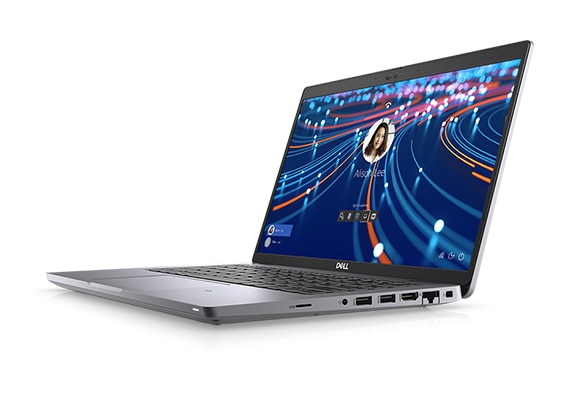
If you are shopping for a laptop with a healthy battery, our Dell Latitude 5420 at AED 739 and our Dell Latitude 7420 at AED 1,039 are our most popular laptop models, and every refurbished laptop from us is tested and covered by a 12 month warranty.
Why Laptop Batteries Wear Out Faster in Dubai
A laptop battery is a chemical part, and heat is its biggest enemy. In Dubai, summer highs regularly pass 45C, and a laptop left in a parked car, near a sunny window or on a soft bed can reach temperatures that age the battery fast. Heat speeds up the chemical wear inside the cells, so a battery that should last three or four years can start to fade in two.
Charging habits matter too. Keeping a laptop plugged in at 100% all day, every day, keeps the battery under stress. So does draining it to zero again and again. Add a bright screen, many background apps and heavy video calls, and the battery works hard from morning to night. None of this means your laptop is faulty. It means the battery needs a little care, and that care is easy once you know what to do.
Tip 1: Keep Your Laptop Cool
Heat is the number one battery killer in Dubai. Never leave your laptop in a parked car, even for a short stop. A car interior can pass 60C in minutes. Keep the laptop away from direct sun and hot windows. Use it on a hard, flat surface so air can flow under it. A soft bed, a cushion or your lap blocks the vents and traps heat.
If your laptop feels hot to the touch, close heavy apps, let it cool down and move it to a cooler spot. A Dell Latitude 5420 runs cool under normal office work, but even the best laptop suffers if its vents are blocked in a hot room.
Tip 2: Do Not Keep It Plugged In at 100% All Day
A battery kept at 100% charge all day, every day, wears out faster than one that sits between 20% and 80%. This is the single easiest change you can make. If your laptop stays on a desk, unplug it once it reaches 80% or 90% and let it run on battery for a while. Plug it back in when it drops toward 20%.
Many modern laptops, including Dell and Lenovo business models, have a battery limit setting in their power software. Turn it on and set the limit to 80% if you mostly work plugged in. The laptop will stop charging at 80% and the battery will last far longer.
Tip 3: Avoid Draining the Battery to Zero
Letting a battery hit 0% again and again is hard on it. Lithium batteries prefer shallow cycles, not deep ones. Try to plug in before the battery drops below 20%. If your laptop shuts down from an empty battery, charge it as soon as you can and do not leave it empty for days. A battery left flat for weeks can lose its ability to hold a charge at all.
Tip 4: Turn Down the Screen Brightness
The screen is the biggest power user in most laptops. Dropping brightness from 100% to 60% or 70% can add an hour or more to your battery life. Indoors, you rarely need full brightness. Use the automatic brightness setting if your laptop has one, and turn on dark mode in Windows and in your browser. Dark mode saves real power on some screens and is easier on the eyes in a bright office.
Tip 5: Close Background Apps You Do Not Need
Many apps keep running in the background even when you are not using them. Chat apps, cloud sync tools, browser tabs and auto updaters all draw power. Open Task Manager, look at the battery usage list and close what you do not need. In your browser, close tabs you are not reading. A browser with 30 open tabs can use as much power as a video call.
Tip 6: Use Battery Saver Mode
Windows has a built in Battery Saver mode that dims the screen, limits background activity and stretches your battery. Turn it on when you are away from a charger, or set it to switch on automatically below 20%. It costs you nothing in normal office work, and it can add 30 to 60 minutes to a working day.
Tip 7: Turn Off WiFi and Bluetooth When You Do Not Need Them
WiFi and Bluetooth keep scanning for networks and devices, which uses power even when you are not connected. If you are working offline, writing a document or watching a downloaded video, turn them off. Turn them back on when you need them. It is a small change, but it adds up over a full day.
Tip 8: Keep Your Laptop Updated
Windows updates and driver updates often include power improvements. An old driver can keep a part of the laptop awake when it should sleep. Check for Windows updates once a week and install them. Update your graphics and WiFi drivers from the laptop maker’s site. A laptop that sleeps properly when you close the lid saves far more power than one that stays warm in your bag.
Tip 9: Calibrate Your Battery Once in a While
If your laptop says 30% left and then shuts down, the battery meter is out of sync with the real charge. Calibration fixes this. Charge the laptop to 100%, then use it on battery until it reaches about 5%, then charge it back to 100% without a break. Do this once every two or three months, not every week. It does not repair a worn battery, but it makes the percentage reading honest again, so you can plan your day properly.
Tip 10: Use the Right Charger
A cheap or wrong charger can feed your battery the wrong voltage and wear it out early. Use the charger that came with your laptop, or a genuine replacement with the same wattage. Our Dell 65W USB-C charger at AED 54 and HP 65W USB-C charger at AED 59 are genuine wattage matched chargers for their laptops. If you charge several devices at once, our new UGREEN Nexode 300W GaN charger at AED 699 is a desktop station with 5 ports and up to 140W from one USB-C port.
Tip 11: Store a Spare Laptop Properly
If you have a spare laptop you do not use every day, do not store it fully charged or fully empty. Charge it to about 50%, turn it off and keep it in a cool, dry place. Check it every month or two and top it up to 50% again. A battery stored at 100% in a hot Dubai storeroom will lose capacity fast, even if the laptop is never switched on.
Tip 12: Know When the Battery Is Truly Finished
Sometimes a battery is simply worn out, and no tip will bring it back. The signs are clear: the laptop lasts under an hour on a full charge, the battery percentage jumps around, the laptop shuts down without warning, or the battery swells and lifts the keyboard or the base. A swollen battery is a safety issue. Stop using the laptop, do not press on the swollen area, and get it replaced.
For many laptops, a battery replacement is cheaper than a new laptop. A Dell Latitude E7240 at AED 360 is a low cost spare machine if you need a backup while your main laptop is being repaired. If you are buying a replacement laptop instead, our ThinkPad T14 Gen 3 at AED 1,829 is a 12th Gen business laptop with a fresh, tested battery and a 12 month warranty.
Quick Checklist: Battery Care in 60 Seconds
- Keep the laptop cool and off soft surfaces.
- Charge between 20% and 80% when you can.
- Never leave it at 0% or 100% for days.
- Turn brightness down to 60% or 70% indoors.
- Close background apps and extra browser tabs.
- Use Battery Saver mode away from a charger.
- Turn off WiFi and Bluetooth when offline.
- Update Windows and drivers every week.
- Calibrate the battery every two or three months.
- Use the right charger, never a cheap copy.
- Store a spare laptop at 50% in a cool place.
- Replace a swollen or dead battery straight away.

Frequently Asked Questions
Why does my laptop battery drain so fast in Dubai?
Heat is the main reason. Dubai summers pass 45C, and heat ages laptop batteries faster. A bright screen, many background apps and keeping the laptop plugged in at 100% all day also drain the battery sooner.
Should I keep my laptop plugged in all the time?
It is better not to. Keeping a battery at 100% all day wears it out faster. If you work plugged in, set a charge limit of 80% in your laptop’s power settings, or unplug it once it is charged and let it run on battery for a while.
How long should a laptop battery last?
A healthy laptop battery usually lasts 2 to 4 years, or about 300 to 500 full charge cycles, depending on how you use it. With good care, a battery can last longer. With heat and bad charging habits, it can fade in under two years.
Is it safe to use my laptop while it is charging?
Yes, it is safe to use a laptop while it charges. Just keep it on a hard surface so the vents stay clear, and avoid using it on a bed or cushion where heat builds up.
When should I replace my laptop battery?
Replace it when the laptop lasts under an hour on a full charge, shuts down without warning, or the battery swells. A swollen battery is a safety issue and should be replaced straight away. Message us on WhatsApp at +971 58 959 4156 and we will tell you the replacement cost for your model.
Browse our full range of refurbished laptops in the shop, or message us on WhatsApp at +971 58 959 4156 for help picking a laptop with a healthy battery. Every laptop from Khaleej Electronics comes with a 12 month warranty, 10 day easy returns and free delivery across Dubai and Sharjah.



One thought on “How to Extend Your Laptop Battery Life in Dubai: 12 Simple Tips”
[…] work from a cafe, a car or a site office with no plug nearby, that hour matters. Read our guide on how to extend your laptop battery life in Dubai for simple habits that help any laptop last longer. In short, i7 vs i9 battery life is a clear win […]